Arduino – Week 3 – Displays and Ultrasonic sensors

Arduino LCD Displays

Wire up the arduino using these following instructions

  • VCC (Red) to 5V
  • Ground/GND (Black) to GND
  • SDA (Blue) to A4
  • SCL (Yellow) to A5

The code used was downloaded adn the library installed in the specific location. Ensure that the LCD drivers are included in the same folder

#include <Wire.h>  // Comes with Arduino IDE
// Get the LCD I2C Library here: 
// https://bitbucket.org/fmalpartida/new-liquidcrystal/downloads

#include <LiquidCrystal_I2C.h>

// set the LCD address to 0x27 for a 20 chars 4 line display
// Set the pins on the I2C chip used for LCD connections:
//                    addr, en,rw,rs,d4,d5,d6,d7,bl,blpol
LiquidCrystal_I2C lcd(0x27, 2, 1, 0, 4, 5, 6, 7, 3, POSITIVE);  // Set the LCD I2C address

void setup()   /*----( SETUP: RUNS ONCE )----*/
{
  Serial.begin(9600);  // Used to type in characters
  lcd.begin(20,4);         // initialize the lcd for 20 chars 4 lines, turn on backlight

  //-------- Write characters on the display ------------------
  // NOTE: Cursor Position: Lines and Characters start at 0  
  // lcd.setCursor(Horizontal position,Line) 
  
  lcd.setCursor(4,0); //Start at character 4 on line 0
  lcd.print("GO BACK");
  lcd.setCursor(4,1);  //Next start at character 6 on line 1
  lcd.print("TO");
  delay(1000);
  lcd.setCursor(4,2);
  lcd.print("THE");
  delay(1000);  
  lcd.setCursor(4,3);
  lcd.print("SHADOWS");
  
  delay(4000);
  // Wait and then tell user they can start the Serial Monitor and type in characters to
  // Display. (Set Serial Monitor option to "No Line Ending")
  lcd.setCursor(0,0); //Start at character 0 on line 0

  lcd.clear(); //Clears the screen.
  lcd.print("Start Serial Monitor");
  lcd.setCursor(0,1);
  lcd.print("Type characters");  
  lcd.setCursor(0,2);
  lcd.print("to display");  


}/*--(end setup )---*/


void loop()   /*----( LOOP: RUNS CONSTANTLY )----*/
{
  {
    // when characters arrive over the serial port...
    if (Serial.available()) {
      // wait a bit for the entire message to arrive
      delay(100);
      // clear the screen
      lcd.clear();
      // read all the available characters
      while (Serial.available() > 0) {
        // display each character to the LCD
        lcd.write(Serial.read());
      }
    }
  }

}/* --(end main loop )-- */


Displaying ultrasonic measurements on LCD screen

This is the code for running the screen and the ultrasound sensor all as the same time, displaying the range in cm to the LCD screen attached to the the arduino

It is a combination of both the ultrasonic sketch downloaded from student central and the above LCD sketch. The basics behind it is setting up the ultrasonic sensor as an input and keeping the LCD as an output

After some playing around to change the refresh rate (delay) of the LCD and where the stationary text was it looked good and could accurately read the distance if it was within its range

#include <Wire.h> // Comes with Arduino IDE
// Get the LCD I2C Library here:
// https://bitbucket.org/fmalpartida/new-liquidcrystal/downloads

#include <LiquidCrystal_I2C.h>

// set the LCD address to 0x27 for a 20 chars 4 line display
// Set the pins on the I2C chip used for LCD connections:
// addr, en,rw,rs,d4,d5,d6,d7,bl,blpol
LiquidCrystal_I2C lcd(0x27, 2, 1, 0, 4, 5, 6, 7, 3, POSITIVE); // Set the LCD I2C address

#define echoPin 7 // Echo Pin
#define trigPin 8 // Trigger Pin
#define LEDPin 13 // Onboard LED

int maximumRange = 200; // Maximum range needed
int minimumRange = 0; // Minimum range needed
long duration;
long distance; // Duration used to calculate distance

void setup() {
Serial.begin(9600);
lcd.begin(20,4);
pinMode(trigPin, OUTPUT);
pinMode(echoPin, INPUT);
pinMode(LEDPin, OUTPUT);

lcd.setCursor(0,0);
lcd.print("Range Finder");
lcd.setCursor(0,1);
lcd.print("Current Distance : ");
lcd.setCursor(7,2);
lcd.print("cm");

}

void loop() {
/* The following trigPin/echoPin cycle is used to determine the
distance of the nearest object by bouncing soundwaves off of it. */
digitalWrite(trigPin, LOW);
delayMicroseconds(2);

digitalWrite(trigPin, HIGH);
delayMicroseconds(10);

digitalWrite(trigPin, LOW);
duration = pulseIn(echoPin, HIGH); // Measures the length of a pulse on echoPin in microseconds
//waits for the pin to go HIGH, starts timing, then waits for the pin to go LOW and stops timing.
//Returns the length of the pulse in microseconds.

//Calculate the distance (in cm) based on the speed of sound.
distance = duration/58.2;

if (distance >= maximumRange || distance <= minimumRange){

lcd.clear();
lcd.setCursor(0,0);
lcd.print("Range Finder");
lcd.setCursor(0,1);
lcd.print("Current Distance : ");
lcd.setCursor(4,2);
lcd.print(distance);
lcd.setCursor(7,2);
lcd.print("cm");
delay(300);
digitalWrite(LEDPin, HIGH);

}
else {
lcd.clear();
lcd.setCursor(0,0);
lcd.print("Range Finder");
lcd.setCursor(0,1);
lcd.print("Current Distance : ");
lcd.setCursor(4,2);
lcd.print(distance);
lcd.setCursor(7,2);
lcd.print("cm");
delay(300);
digitalWrite(LEDPin, LOW);
}
delay(500);
}

Arduino – Week 2 – Stepper Motors

What is a stepper motor?

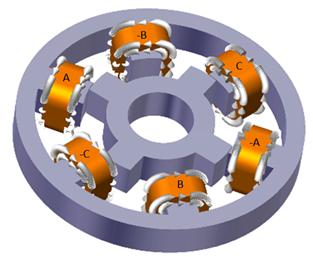
A stepper motor uses opposing electromagnets to create rotation. The different number of steps are determined by the number of poles on each the stator and the rotor.

https://www.elprocus.com/stepper-motor-types-advantages-applications/

There are several different types of stepper motor, depending on the use case and the size that is required. The main types are :

Permanent magnet stepper > These use permanent magnets in the rotor and electromagnets in the rotor, using attraction and repulsion to create rotation

Uses

Stepper motors can be used for all sorts of CNC controlled devices such as 3D printer or CNC routers.

Mechanical arms such as those used for assembly of cars etc will use stepper motors to obtain exact position repeatably

Any automated machinery that requires exact positions to be returned to, will use stepper motor as they are very precise int he increments of rotation that they can do.

How to drive a stepper motor

Wave forms that drive a stepper motor

Turning coils on and off > Transistors are electric dimmer switches which can be used as on off switches for stepper motors


Stepper Motors with Arduino – Getting Started with Stepper Motors

Stepper Motor Code

Setup code for the stepper motor initialises which pins are the outputs from the arduino

void setup() {

// initialize digital pin LED_BUILTIN as an output.

pinMode(13, OUTPUT);

pinMode(12, OUTPUT);

pinMode(11, OUTPUT);

pinMode(10, OUTPUT);

}
void loop() {
//STEP 1
digitalWrite(10, HIGH);
digitalWrite(11, LOW);
digitalWrite(12, LOW);
digitalWrite(13, HIGH);
delay(2);                                      // delay

//STEP 2
digitalWrite(10, HIGH);
digitalWrite(11, HIGH);
digitalWrite(12, LOW);
digitalWrite(13, LOW);
delay(2);                                      // delay

//STEP 3
digitalWrite(10, LOW);
digitalWrite(11, HIGH);
digitalWrite(12, HIGH);
digitalWrite(13, LOW);
delay(2);                                      // delay

//STEP 4
digitalWrite(10, LOW);
digitalWrite(11, LOW);
digitalWrite(12, HIGH);
digitalWrite(13, HIGH);
delay(2);                                     // delay

The loop will run through all of the bracketed coded indefinitely

delay(2) is the amount of ms left between that line of code and the next, which determines how fast or slow the motor will turn. The smaller the number, the faster it spins.

Arduino – Week 1 – Software Notes

Pulse Width Modulation


Using ‘unsigned char’ to replace values

> ‘unsigned char’ allows you to control all of the same variables in a sketch by only changing one value

unsigned char DelayTime = 255;
unsigned char LEDoutput = 2;

// the setup function runs once when you press reset or power the board
void setup() {
 // initialize digital pin LED_BUILTIN as an output.
 pinMode(LED_BUILTIN, OUTPUT);
 pinMode(LEDoutput, OUTPUT);
}
// the loop function runs over and over again forever
void loop() {
 digitalWrite(LEDoutput, HIGH);
 digitalWrite(LED_BUILTIN, HIGH);
 delay(DelayTime);
 digitalWrite(LEDoutput, LOW);
 digitalWrite(LED_BUILTIN, LOW);
 delay(DelayTime);
 DelayTime = DelayTime - 10;
 }
Week 8 – Fusion 360 CAM for mould-making and casting

Design Rules for CNC/casting

Most important is to know your cutter shape and size. Any features have to be designed in accordance to the diameter of the cutter as this will restrict how far and deep the slots between features can be.

Try and keep the cutter as big as possible as it will reduce cutting time as well as the chance of the cutter breaking or chipping.

If you are making a mould;just like the vacuum former; you will need to use draft angles even on small/short features.

Absolutely no undercuts as the CNC milling machine is unable to rotate the bed or spindle

Milling Guide from fablab

CNC design restrictions

Making a 30 x 30 x 5mm tile in Fusion 360

  • See SolidCAM post for a similar setup on SolidCAM
  • Using the design rules above create your tile using Fusion 360 – with the front place in CAD actually the top of your model – CNC’s use a different coordinate system
  • Move to the ‘MANUFACTURE’ tab

CAM Setup

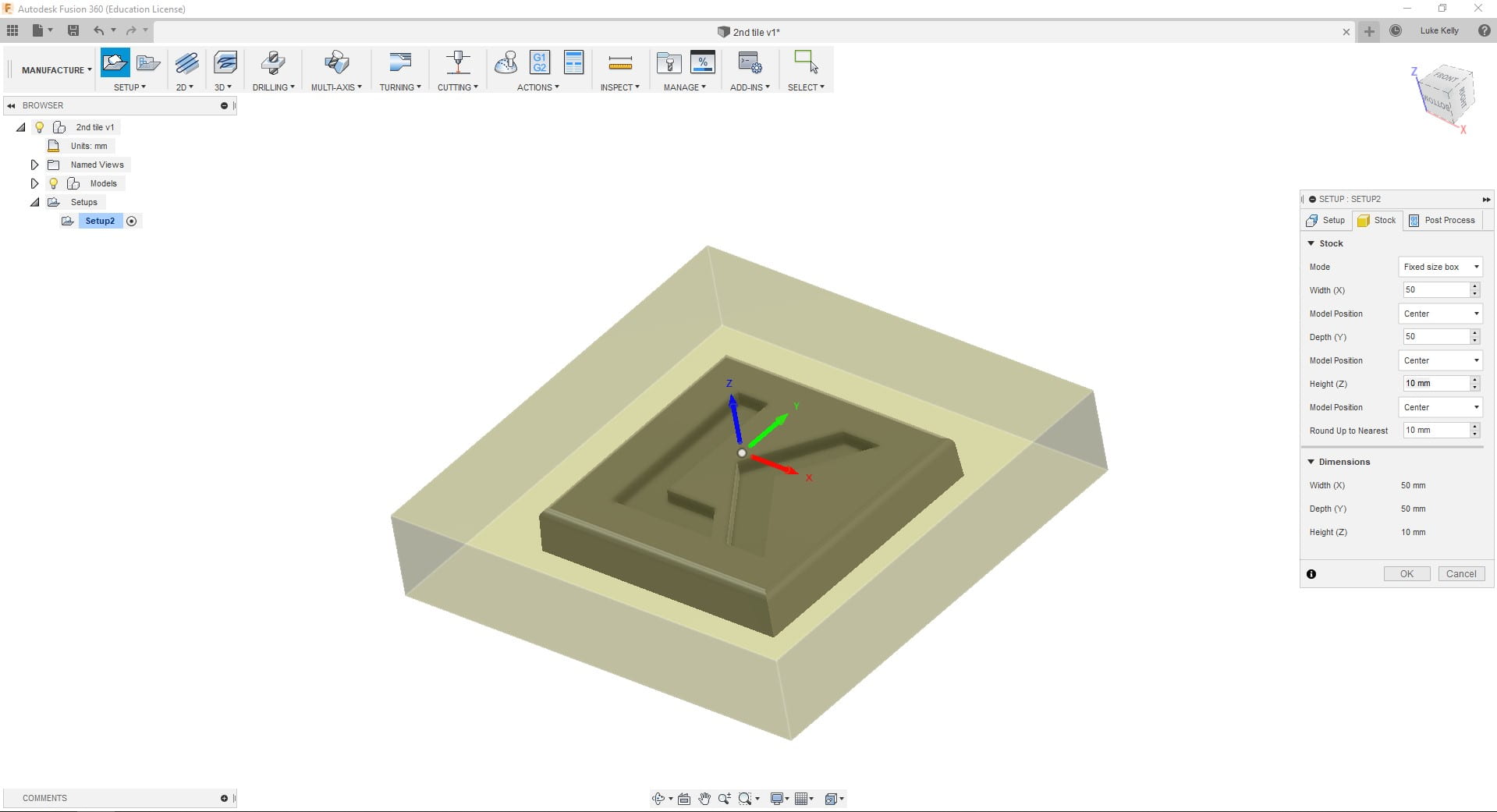
  1. Click on ‘Setup’  > Ensure ‘Stock box point’ is selected in the origin box
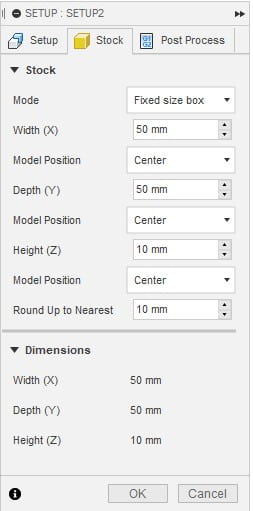
  2. Under the ‘Stock’ tab > Selected ‘Fixed box size’ Set to 50x50x10mm with ‘Centre’ selected for the other boxes ; I always select ‘Fixed size box’ as then I always know that the scale isn’t messed up and can work with the size of the raw stock much more easily
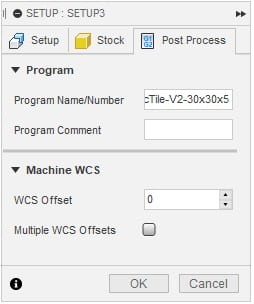
  3. Under the Post-Process tab choose a suitable ‘Program Name/Number’ which includes enough details to not get confused with other versions of the file, in case you need to come back and change tool paths etc later

Milling Operations

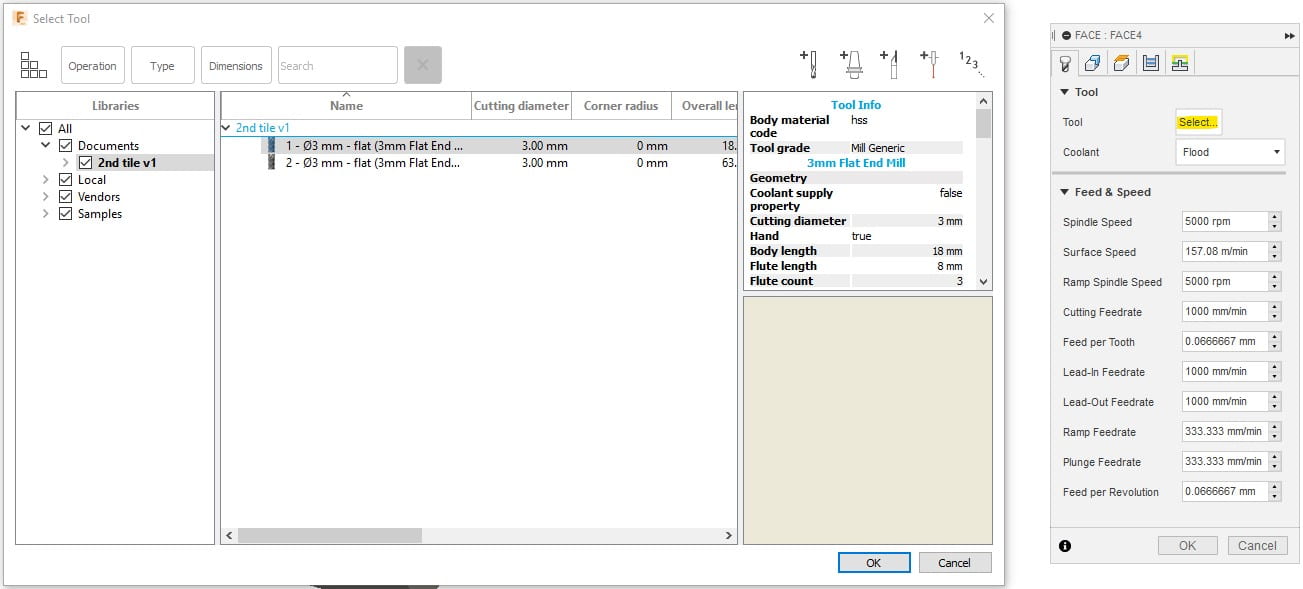
  1. Right click on Setup > New Operation > ‘2D Milling’ > ‘Face’ ; For the first operation to get down to the correct level
  2. Select ‘Tool’ to create the new tool > Edit the highlighted settings which are the important ones for making this tile > click ‘OK’ and turn off coolant – OR choose from the existing tool selection > Samples > Metric – High Carbon Steel > φ3mm – flat (3mm Flat Endmill) 
  3. Go to the stock selections tab > ‘Select’ box next to ‘Stock Selections’  > Click on the top surface > this picks the level you want to mill down to
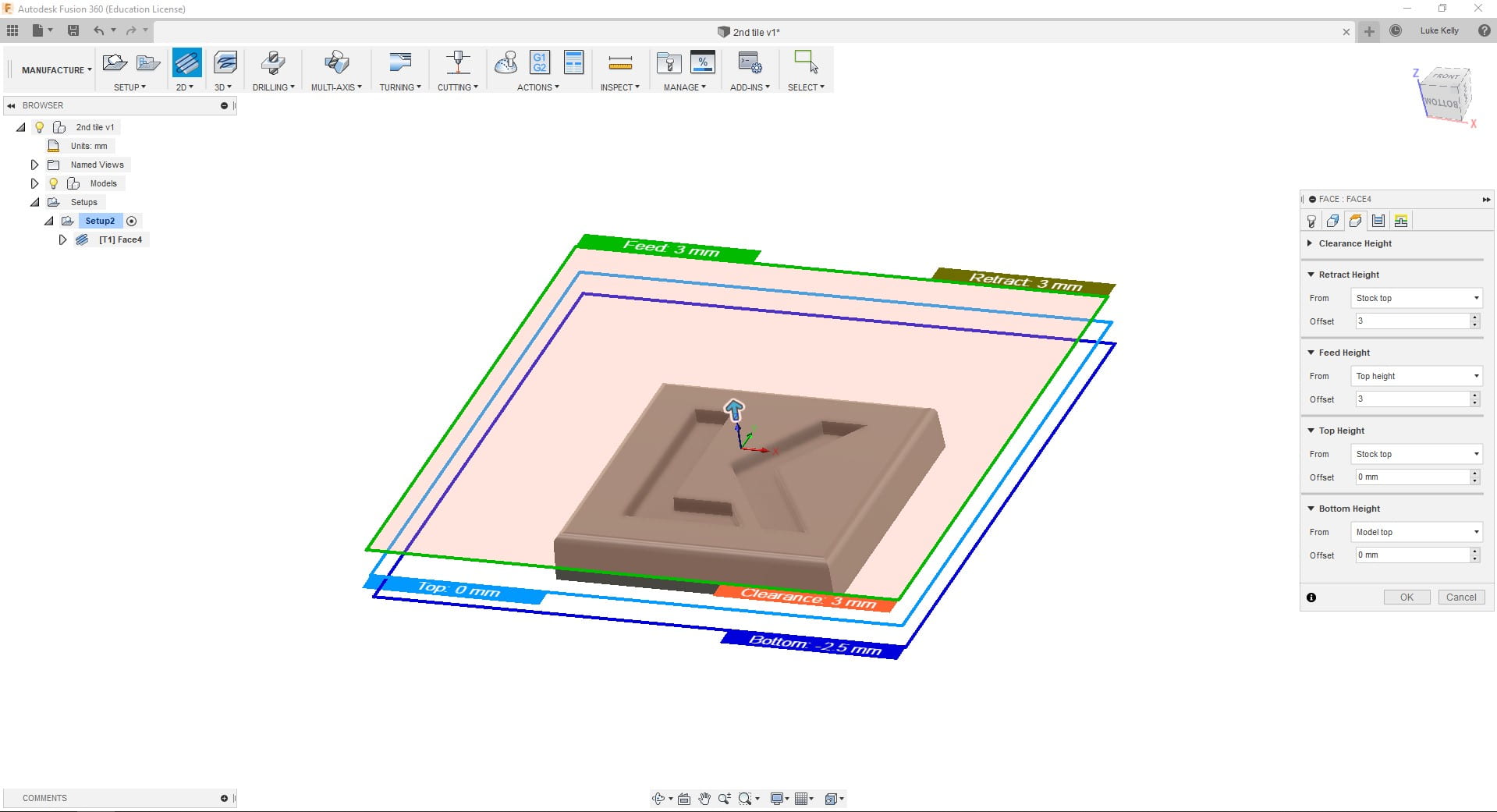
  4. Heights tab > Set them all to from ‘Stock Top’ apart from depth which you can set to ‘Model Top’  > These are the levels your tool will retract to after each operation and shouldn’t be too close to the stock top nor too far to waste time
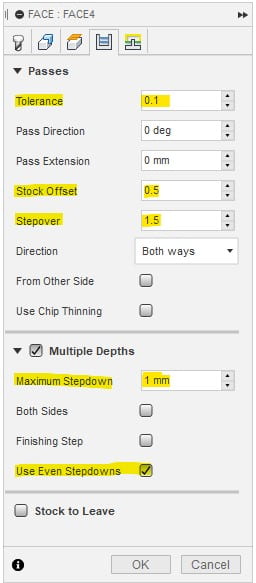
  5. Passes tab > This sets how much material the tool can remove with one pass > General rule is half the width of the tool for step over and 1/3 of tool diameter for ‘stepdown’
  6. Linking tab can be left as is. This controls the lead in and lead out
  7. Complete these steps again for the next tool operations – the only difference should be the levels and the geometry > all of the tool data and offsets remain the same as above
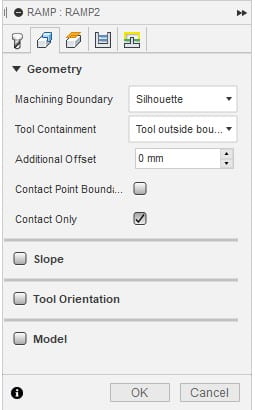
  8. I use the ‘Ramp’ tool to cut the contour and pocket in the same operation > this just cuts out time in Fusion 360 by remove the need to go through the set up process for the operations separately
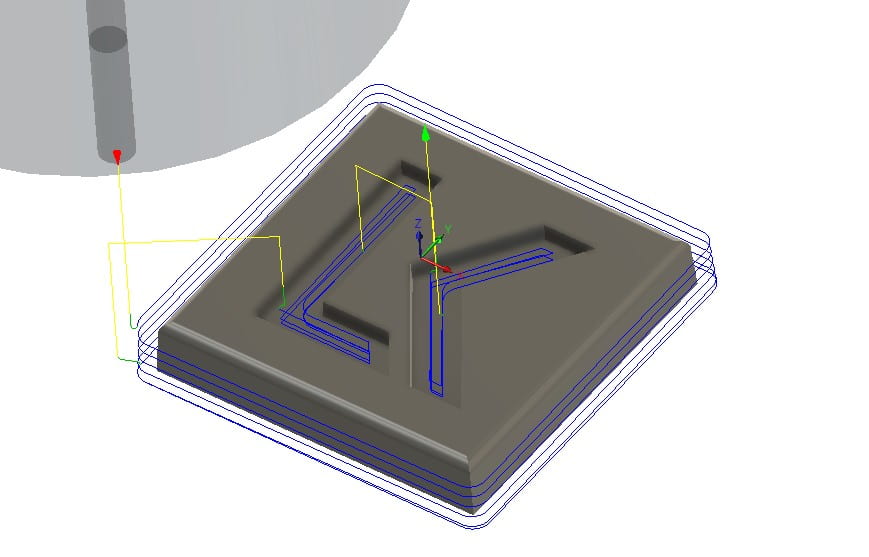
  9. Check the tool path with the simulate function > Set the tool to be Shaft to remove the large tool holder blocking your view > Show stock > click play button at the base and ensure that all the material is removed > make sure that the mould left is exactly what you want to be left behind

Post Processor

Relatively simple > Click Generate and choose Grbl as the post processor > check you save it in a place that you can find it and check the file name is correct and identifiable


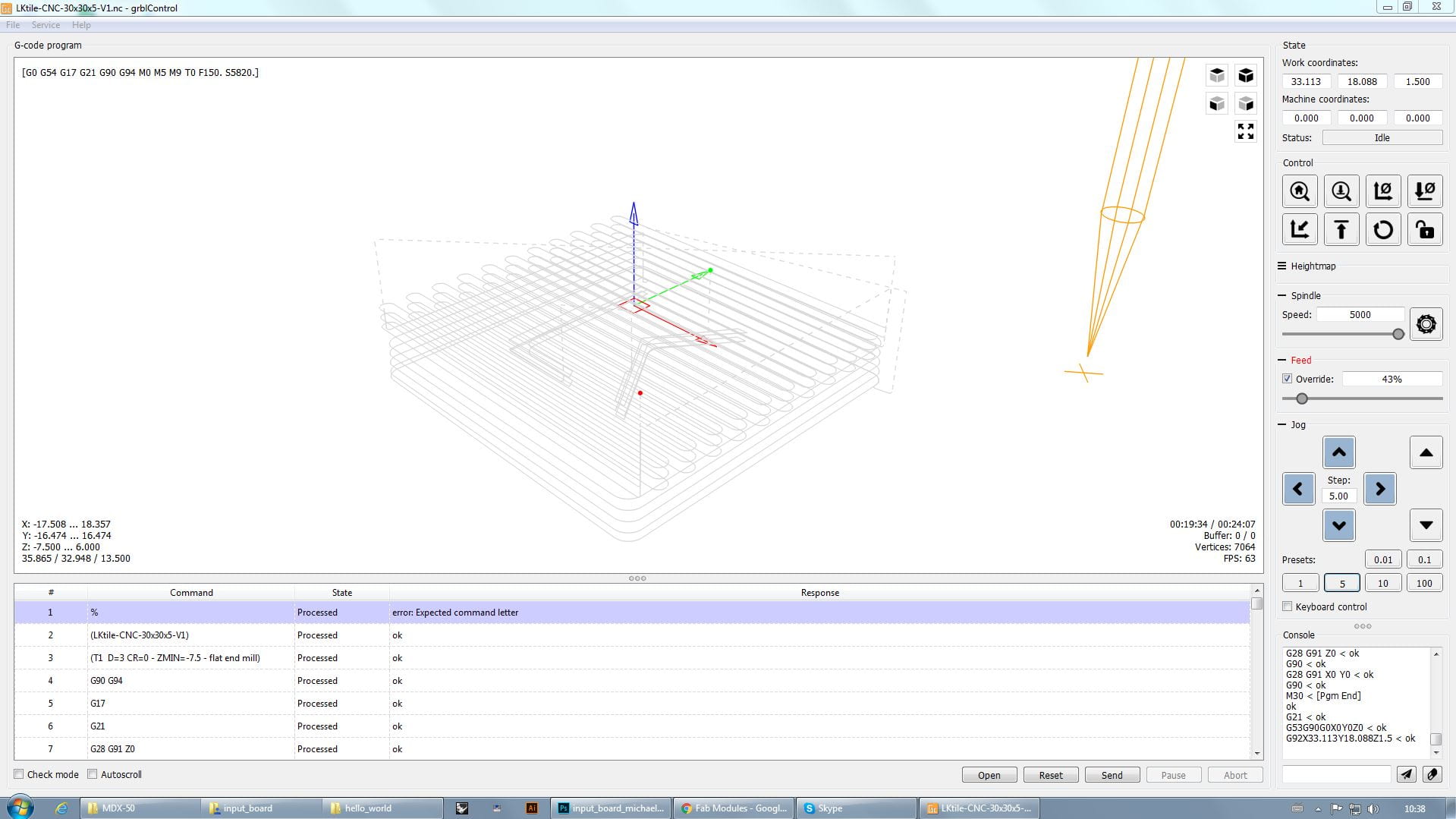
Here is the model with the tool path

And the .nc file

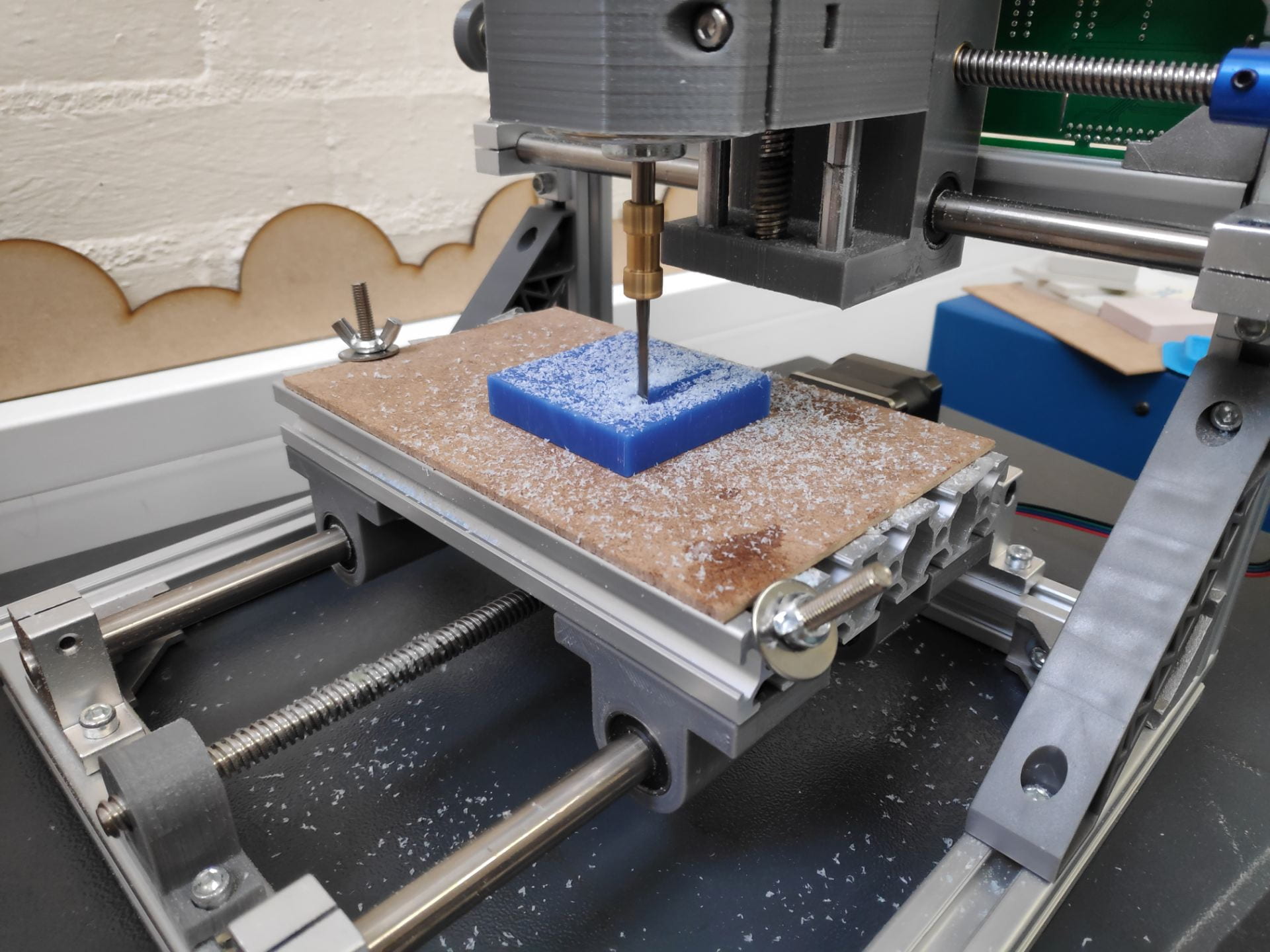
Cutting the tile on the mini CNC machine

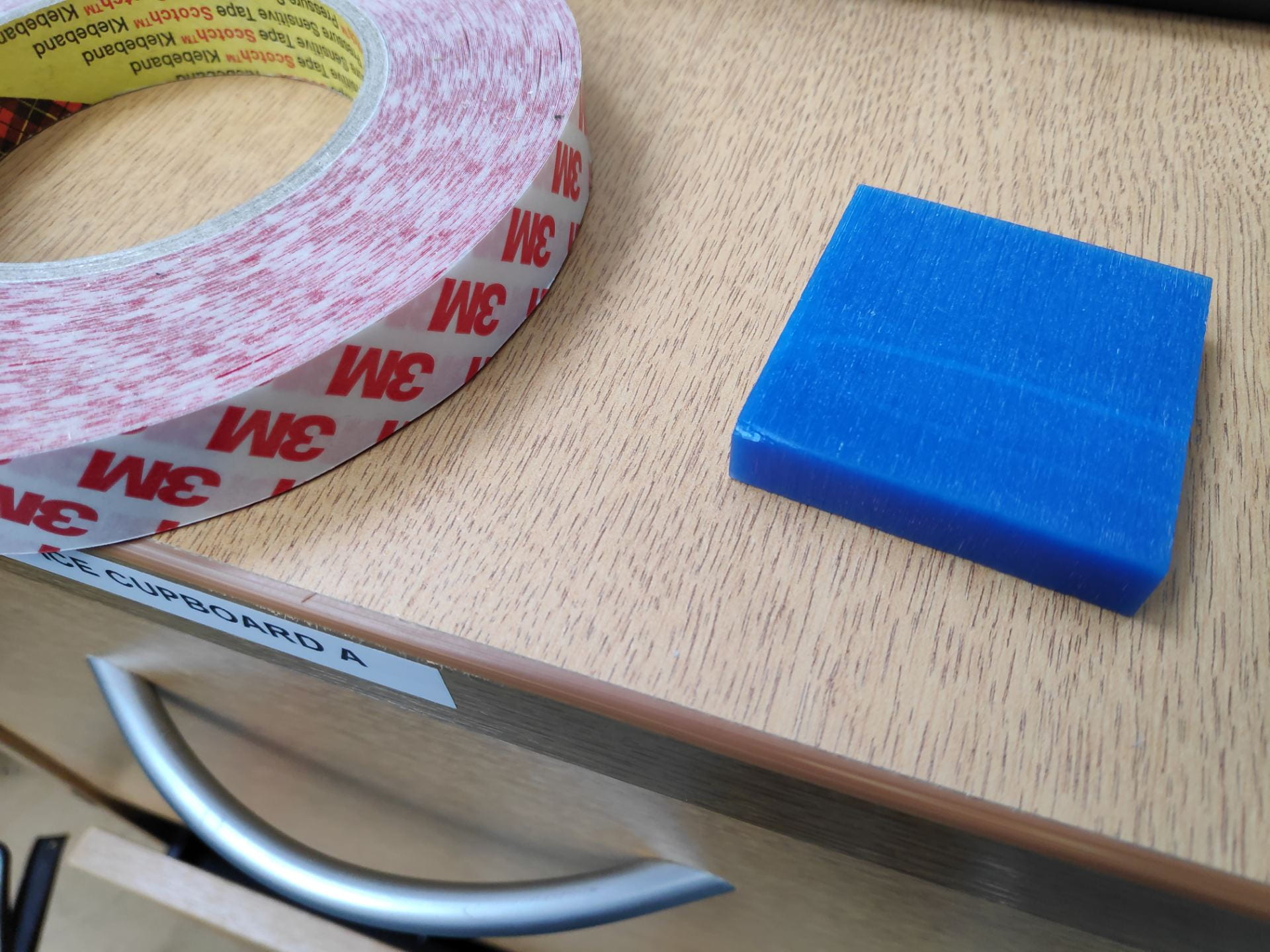
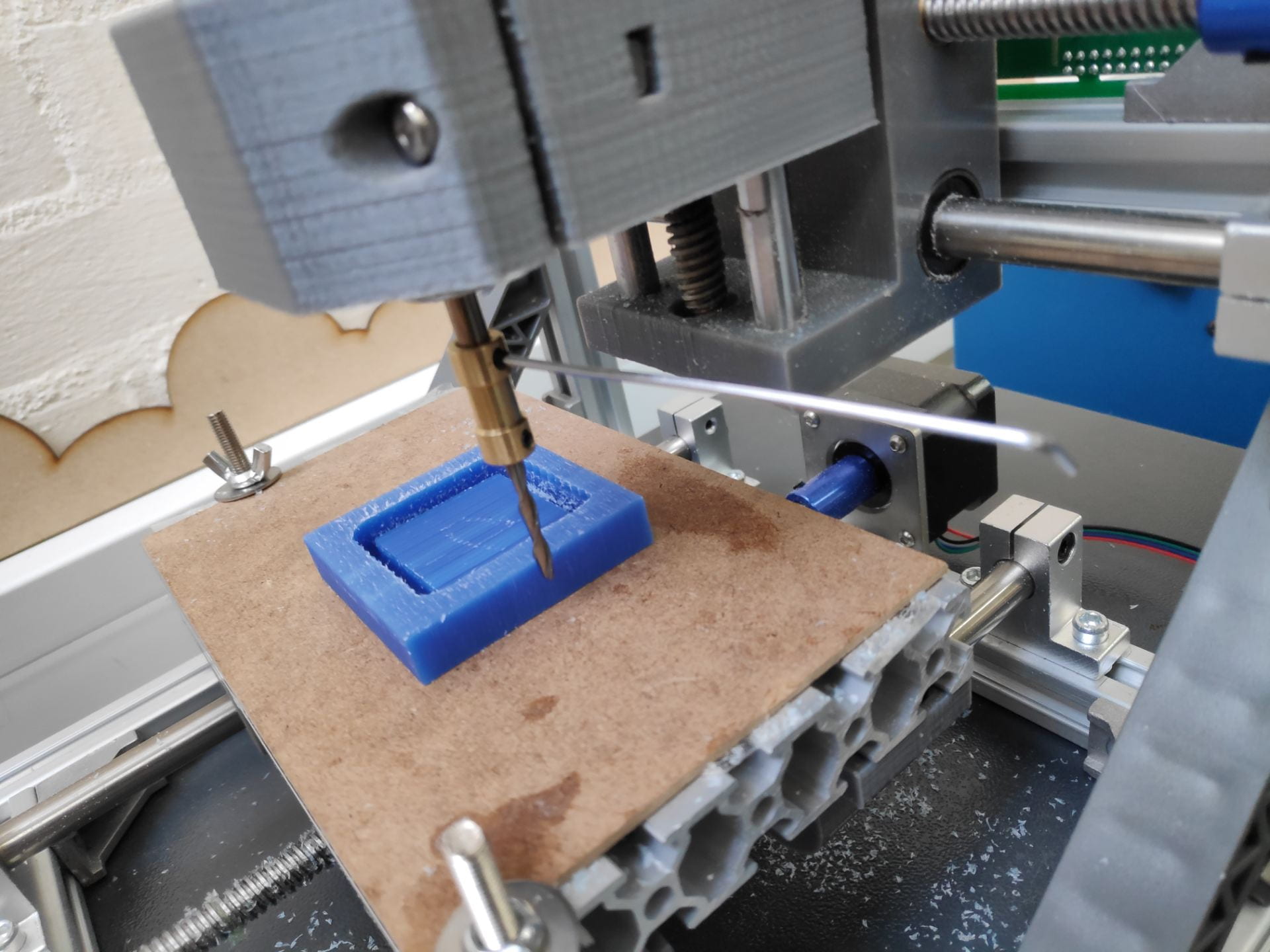
  1.  Prepare the mill, by removing any waste from previous milling operations and apply double sided tape to the block of wax that you will cut your tile on – attach the tile to the centre of the bed
  2. Choose the cutter – use the one which you programmed in Fusion 360 – and install it on the machine. Two grub screws need to be tightened (one either side of the bit, as well as two for attaching it to the spindle)
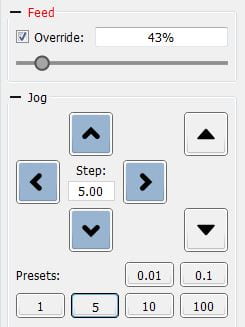
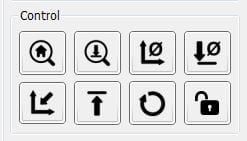
  3. Load the GRBLcontrol program and use this to set the X and Y coordinates in the centre of the block of wax – click set home before moving on
  4. Do a test cut by raising the z home position and cut the air above the wax for about a minute just to check speeds, feeds and if anything looks amiss.
  5. Setting the z height – Very similar to that of the PCB milling machine – turn on the spindle and slowly move the z height down until it just kisses the wax, then set the home and lift it up slightly so it doesn’t crash when you start your operation
  6. Depending on the material override the feed to ~75% for pink foam or ~30% for wax
  7. Click send
  8. I stopped the milling machine at the end of the occasional operation to give it a vacuum and remove the waste material – This will improve the finish especially of harder materials as well as reduce the chance of the tool breaking.
  9. Keep watching it until the operation has finished then remove from the machine bed using a pry tool
  10. Vacuum the bed, ways, screw threads etc as well as the surrounding area, ensuring any tape is also remove from your part as well – leave it as you want to find it
  11. Deburr you wax part using a fingernail or the end of a ruler – but don’t press too hard

Problems

Ensure that the milling cutter is tightened down before each use – it wasn’t checked in my case and it just popped off when it had nearly finished (no harm done!)

This meant that the operation had to be started again and therefore took much longer than it should have

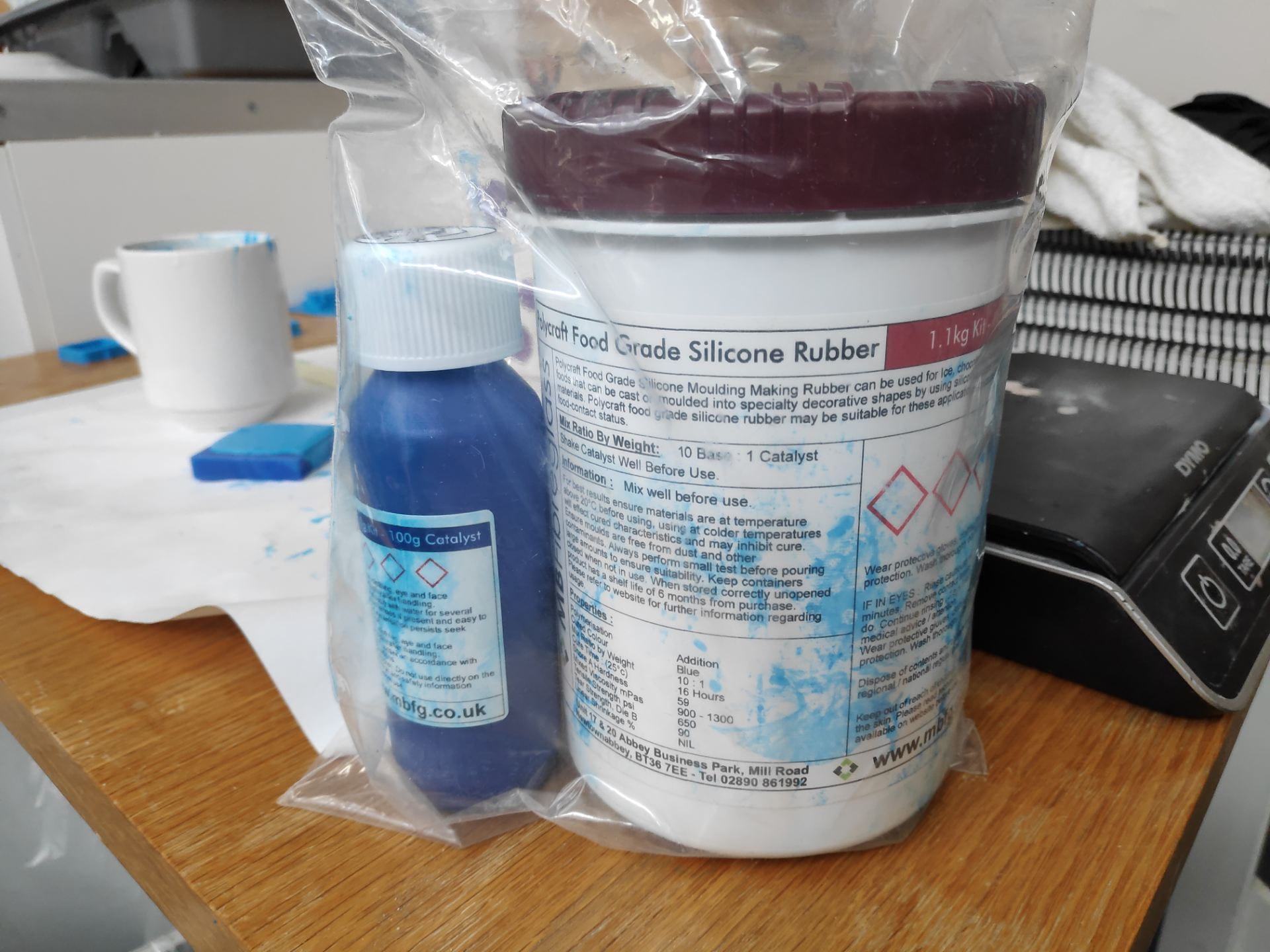
Casting with food grade condensation cure silicone

  1. Prepare a work area with some covering on the work surface as it can be quite messy
  2. Wear disposable gloves as well as a lab coat to protect clothing
  3. Use scale to measure out the silicone and curing agent in a coffee mug 1 to 10 ratio much easier to mix in than a disposable cup (excess can be peeled out after it has set)
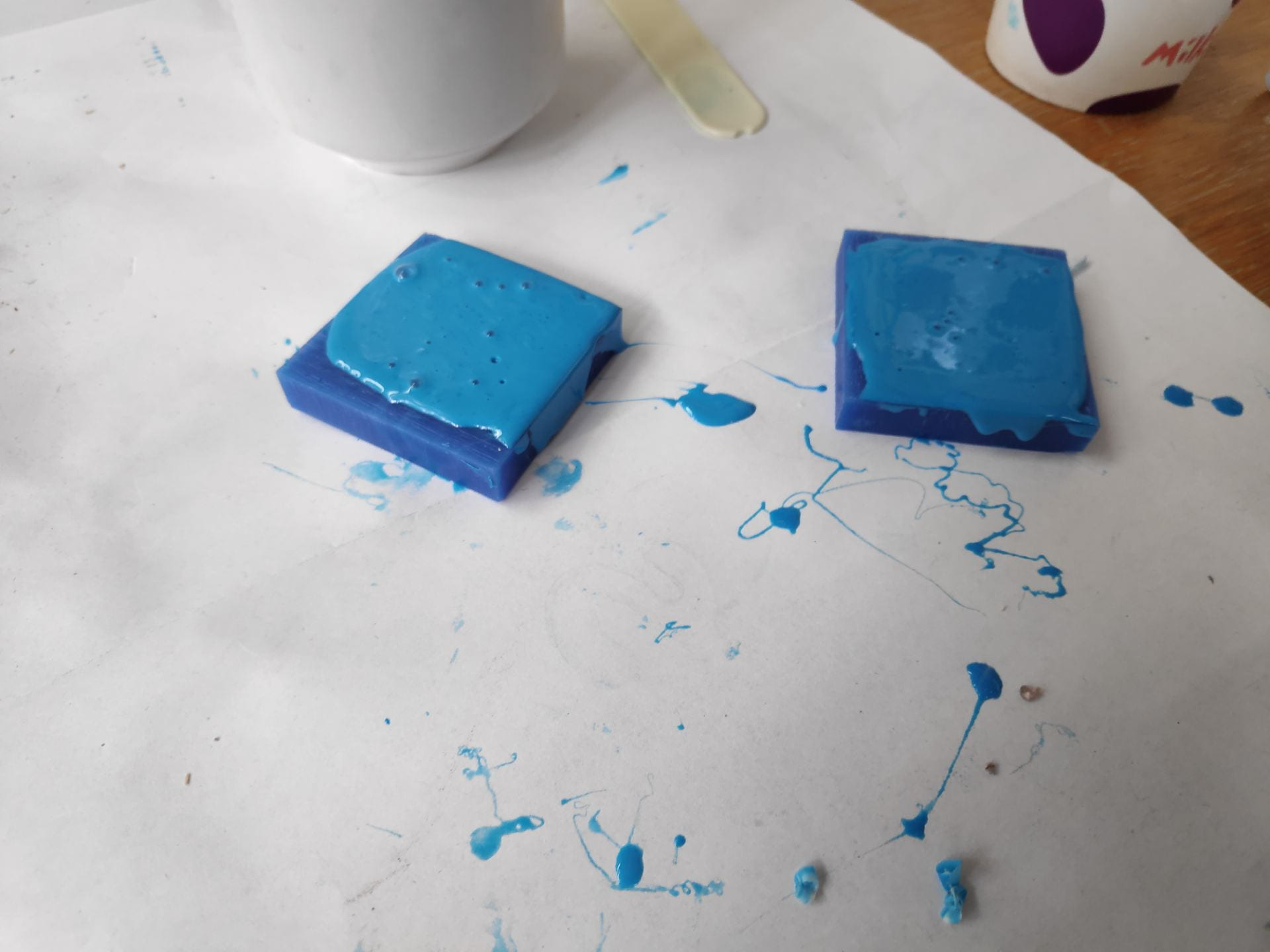
  4. Mix well using a plastic stirring rod and leave for 10 minutes to let the bubbles rise to the surface
  5. Push into your wax mould using the stirring rod and fill up any others it you have any silicone left – try and remove any pockets of air
  6. It is quite good at self levelling so leave the silicone proud of the top of the mould so there is material left to fill any voids as it settles.
  7. Leave to set for at least 24hrs
  8. Peel it out of the wax mould and you should have a mould to cast into

Chocolate Moulding

Moulding with chocolate is relatively easy, just take your time and don’t burn it by putting too much heat into it too quickly. I tried to use the microwave to melt it but in suck small amounts found that difficult.

The best way is to melt the chocolate in a glass bowl over boiling water. Seeing as its a small amount I only needed to boil the kettle and transfer the water to the jug and place the bowl over this (with the water level just below the level of the bowl).

The chocolate came out of the mould relatively easily, and the details were quite prominent. One issue however is the flashing on the outside of the chocolate indicating that I overfilled the mould. It is also down to the ball nose end mill not leaving a square edge at the base of the chocolate, instead leaving a flange.

Week 7 – 3D scanning and printing

3d Scanning can be done in multiple ways and at multiple price points, either with handheld scanner for an iPad all the way up to full systems, e.g for car manufactures to scan clay cars.

They also have different degrees of accuracy, with hand held scanners being less expensive they will also produce less detailed scans, but still very much usable.

Photos to wire frame to surfaces

This is the process of taking a few images and importing them into a CAD software such as Rhino and creating a line drawing from the outside of the image and then building up a CAD model from that. This will produce a very accurate CAD model with clean surfaces, however it might be harder to get in the fine details for the thing you were taking photos of. You may also struggle if the object is very complex or if it has lots of small details on one face, making it difficult to get side profiles of these features.

The main steps are:

  1. Use a curve tool for draw the rough shape
  2. Clean these up with either rebuild curve or by dragging points on the curve
  3. Add in additional details such as the mouse wheel
  4. Use this wire frame to create surfaces which can be then used to 3D print

Photogrammetry

This is the process of taking lots of photos and importing them into a CAD software creating a 3D image using relative distances between the photos. This can normally done with an app as well as a corresponding desktop application as it can be quite intensive to create the model from the photos depending on its complexity.

3D scanning

3D scanning was done using scanners which attached to an iPad, making them very convenient to use; https://structure.io/

The scanning process is relatively simple as the app tells you what to do at each stage

  1. Launch the app and locate the box on the screen on the object that you wish to scan
  2. Change the size of the box to suit that of the object
  3. Click start and slowly move around the object ensuring that all angles are covered. It will tell you from time to time to stop and wait while it picks up all of the surface details.
  4.  Send this via email from the app to start the next process

At this stage you can either use this scan to create a wire frame in a program such as Rhino and create the surfaces as above, or import it into a mesh altering software such as Meshmixer.

Rebuilding

As in the photo to wire frame method, the aim of this is to create a wire frame from the 3D model and then create new surfaces, which will overall give you a much better surface finish, but will be impossible to do on something organic such as an arm.

The 3D scan is brought in and rectangular surfaces are put in to create the main wire frames. Project to surface command is then used to obtain the exact curves. These can then be cleaned up or redrawn as above and then surfaces created using on to the multiple surface tools. This is the the most time consuming method but produces the best results and the highest quality surfaces.

Meshmixer

Meshmixer is a free software which allows you to create and edit meshes and 3D objects, such as 3D scans.

  1. Import you wire and use the simplest tools to reduce your work.
  2. Use the simplest commands first such as ‘Close Gaps’ – this  command will almost always turn a lot of work into very little.
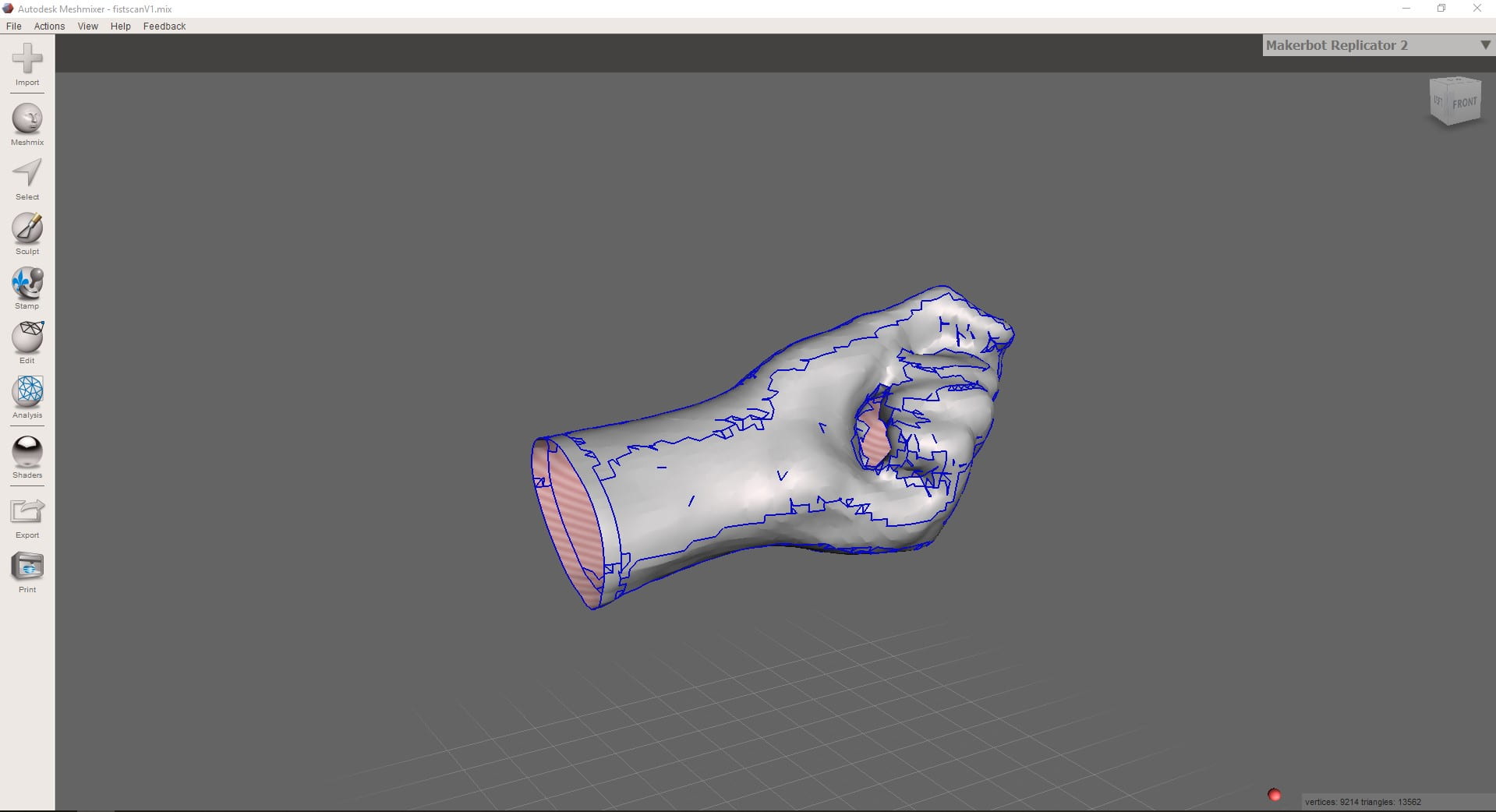
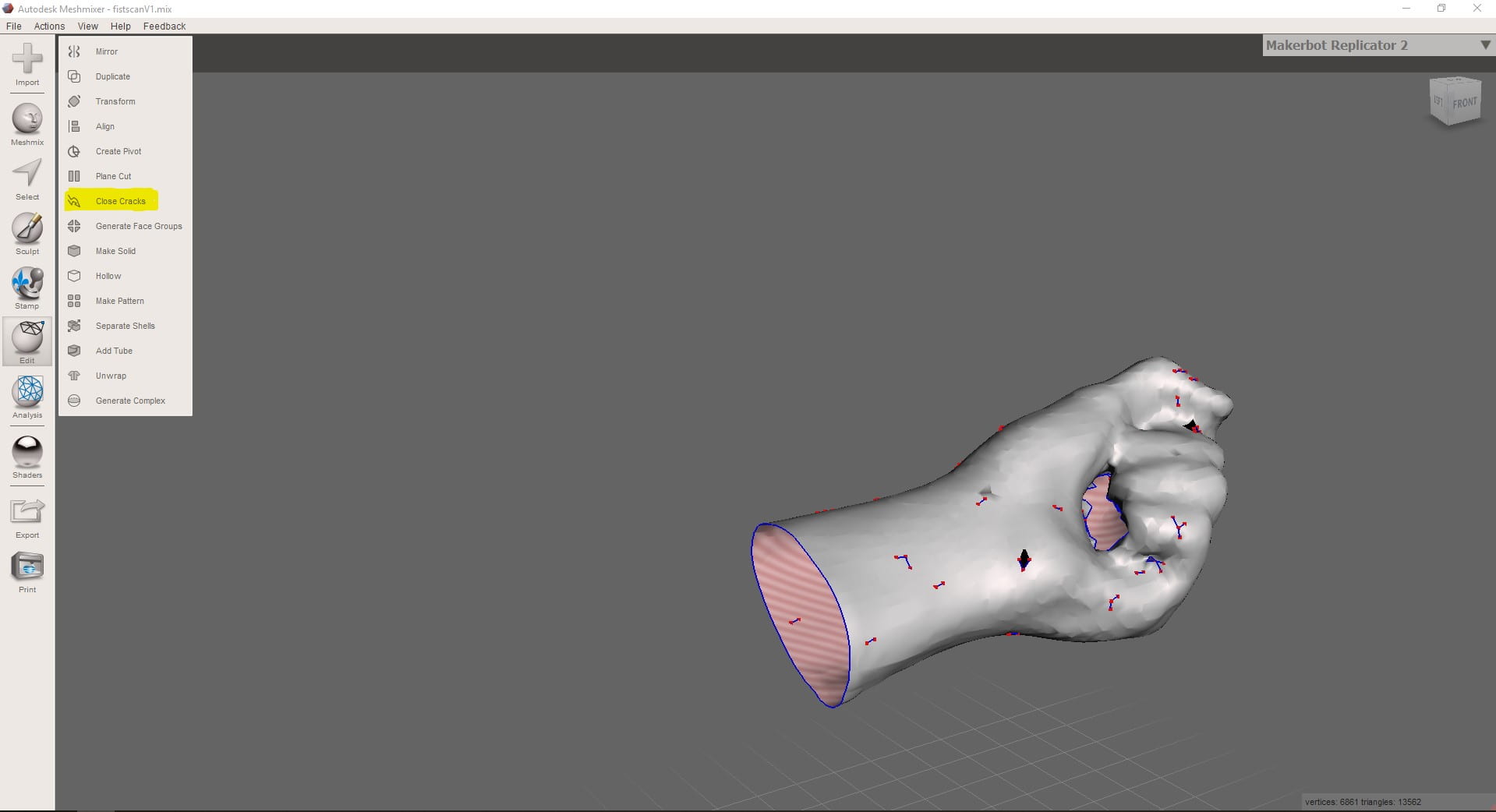
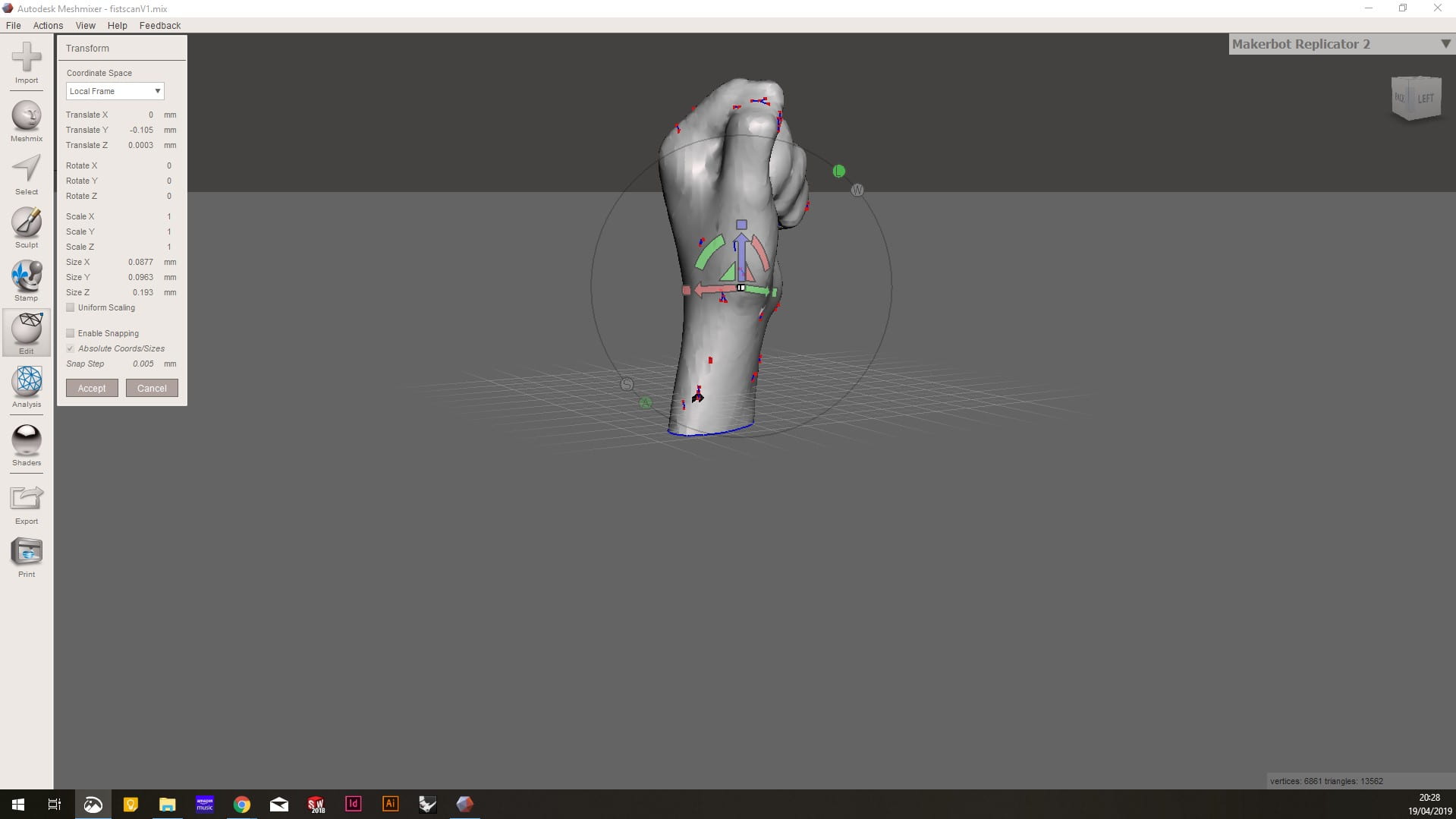
  3. The next best thing is to try and make the object a solid. I found it best to cap the base of the hand and set it at the desired angle. Use the Translate tool for this.
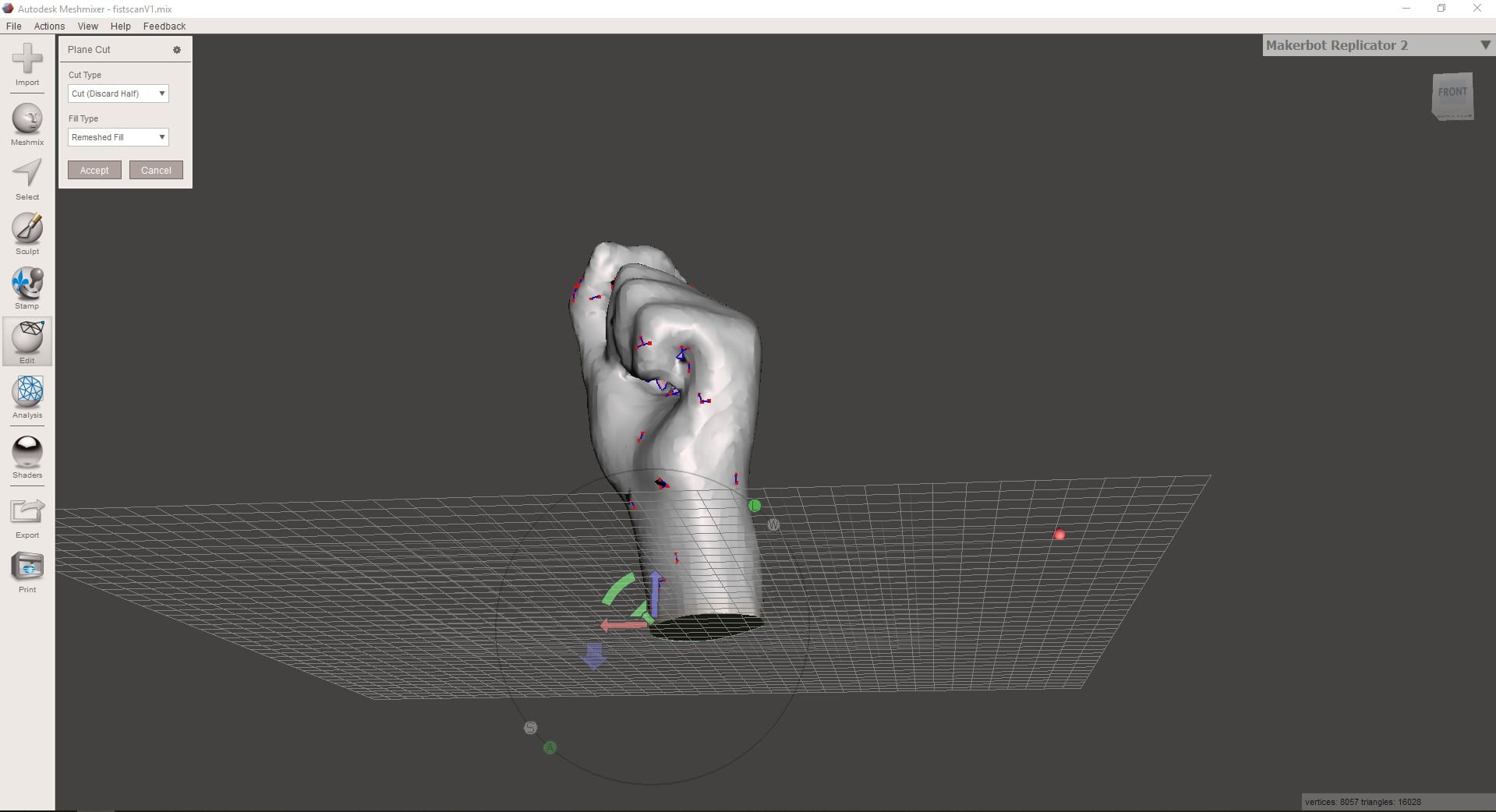
  4. Capping the base of the hand is done using the ‘Plane Cut’ tool. This acts as a knife and cuts a flat surface through your object.
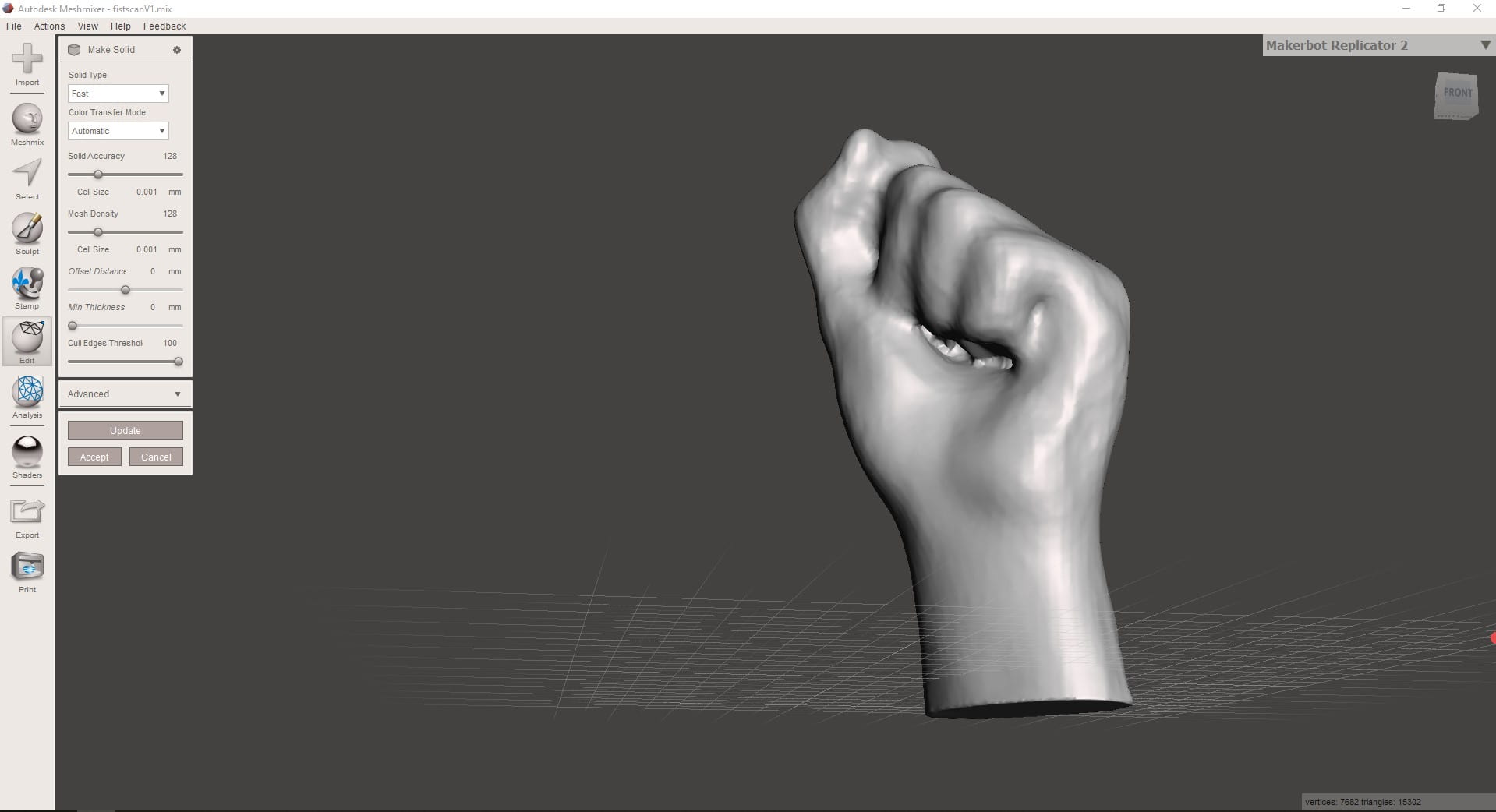
  5. Use the tool ‘Make Solid’ to convert your shape into a solid. It isn’t perfect and left the space under my fingers a mess, mostly due to the lack of light when scanning and therefore details couldn’t be determined.
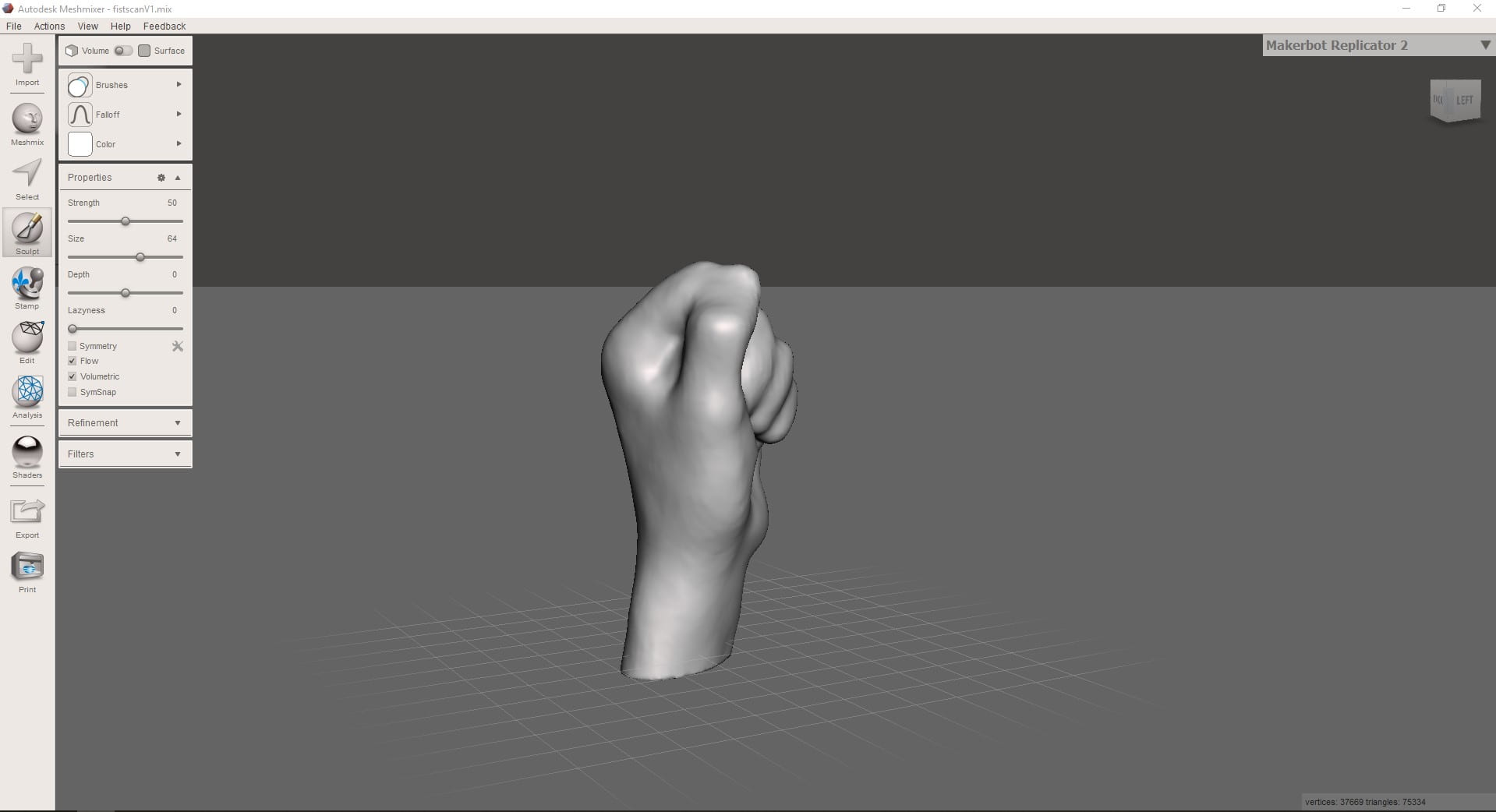
  6. Using the Sculpting tools the errors made by the scanner such as mussing out under the fingers can be corrected.
  7. This video shows the entire process of sculpting and editing the scan

FilesBefore and After

3D printing

  1. Load the document into Ultimaker Cura which allows you to preview and edit the 3D printing details
  2. Once loaded, orientate the model into the desired place and ensure that it has imported in at the correct size. It is important to think about the orientation due to the layers as any overhangs which may require supports. Reducing the number of supports will reduce the print time as well as decrease the need for cleaning up after printing.
  3. Click Slice in the bottom right, then preview when this is completed.
  4. Under print settings you can choose the layer height – main time saver along with infill % – This will require the slice command to be run again
  5.  Preview of the layers being built up; showing the support material

Fist .stl file

Final Image

Parameters in Fusion 360

Parameters are used to define a sketch and easily edit it later on. It is basically using a smart dimension but that can be used over and over again.

Parameter is located under modify

E.g. a thickness for a slot would be material_thickness – (2*laser_cutter_kerf)

addition

 subtraction

% floating point modulo

multiplication

division

power

( following BIDMAS

following BIDMAS

; delimiter for multiargument functions

Slop and security – Range is about 0.1mm – as in the millennial furniture project with the dovetail slots

Solidworks Notes

Help Menu > Solidworks tutorials is a good place to go if stuck

GrabCAD is an online source of downloadable CAD files which can help you to learn how they made a model – with the feature tree you can see every step of them making the model

I have used Lynda.com to start learning Solidworks

Basic Modelling order

  1. Create new sketch
  2. Select Plane
  3. Draw Sketch
  4. Smart Dimension
  5. Exit Sketch
  6. Create Features from sketch
  • Coincident – Same point
  • Concentric – Same centre
  • Collinear – Share same line

Configurations


Setting Document Tolerances

Tools > Options > Document Properties > Dimensions > Primary Precision (Half way down)

Mind Mapping

I decided to use a mind map for the DP403 projects research analysis and wanted to record the process for future reference.

Looking online there are several good mind mapping software but due to the ability to have a free trial I went with iMindMap.

The first step is to choose a theme similar to creating a website, which determines the types of branches and what they look like. Choosing an image or icon for the central idea was next, before creating the first branches which are the main focuses of your mind map. This was a relatively simple process which was a good foothold to start mapping the research.

Adding the detail into the mind map was done by further branches coming off from the original images. This is again easily done with the software. Further branches with boxes were added where more clarification was needed.

Feeling were incorporated into the mind map with the use of emojis. This clearly showed the thought and feeling which were recorded in the surveys and interviews.

The links between posts were created by using lines and the light bulb indicates possible ideas or innovations.

Overall I felt that the mind mapping software was good but not for initial mind maps. The best method would be to draw it by hand and then beautify it on the software. Drawing a mind map by hand is so much quicker and easier to add to and create links, between things. I will be trying the affinity method for all of my other research as I’ve never tried that and think it would be good to try a new method.

Strengths:

Professional looking and easy to change and move around objects

Weaknesses:

Slower than hand drawn

Opportunities:

Improving with software allows them to be produced quicker and with better graphics and with a more effective message

Threats:


Fusion 360 Notes

Everything must have a dimension to lock it in place- blue lines indicate something that hasn’t been dimensioned

Coincident – Where two points join together

Concentric – Have the centre in the same location, share the same centre point.

Co-linear – Same angle of a line for example

Co-radial – same radius for the same point

Equal – Identical sizes, when linked they will change so very useful for changing lots of holes on board for example

Parameter – For circles: Diameter or Radius, position of centre on a face