Arduino – Week 4 – Robot

The final week task was to program a robot which would move by itself and avoid objects

Unfortunately this wasn’t completed due to time constraints, although most of the code for the movements was completed and fully working

The board was attached to the chassis with metal standoff – which did short the board out – however it was sorted out by replacing them with plastic ones

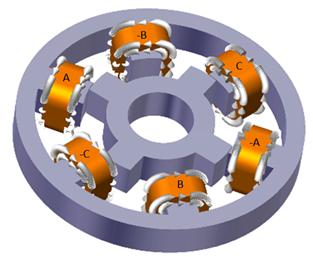
Two stepper motors were used to control the robot, one on each side.

There is a breakout board on top of the arduino, which allows for easy plugging in and out of the stepper motors

Coding

Below is the coding used for the control

Where the breaks are for the left, right, forward, and reverse, the position of the output pins have been changed, so that the stepper motor activated the different magnets in a different order, which changes the direciton.

The left and right have one wheel going forward and one going backwards, therefore turning on the spot, similar to how tanks rotate using their tracks

Here the robot is programmed to run the command for about 16 seconds, after which it will stop moving

/*
  Stepper Motor lakelly 02/05/2019
*/

// the setup function runs once when you press reset or power the board
void setup() 
{
  // initialize digital coil A as an output.
  pinMode(10, OUTPUT);
    // initialize digital coil B as an output.
  pinMode(11, OUTPUT);
    // initialize digital coil C as an output.
  pinMode(12, OUTPUT);
    // initialize digital coil D as an output.
  pinMode(13, OUTPUT);
  //motor 2
  pinMode(6, OUTPUT);
    // initialize digital coil B as an output.
  pinMode(7, OUTPUT);
    // initialize digital coil C as an output.
  pinMode(8, OUTPUT);
    // initialize digital coil D as an output.
  pinMode(9, OUTPUT);

}

 int i=0;
  
void loop() {

   while(i < 1000){
  right();
  i++;

   }
}

void forward()    //+++++++++++++++++++++++++++++++++++++++++++++++FOWARDS++++++++++++++++++++++++++++++++++++++++++++++
{
      //STEP 1
  digitalWrite(10, HIGH);   
  digitalWrite(11, LOW);   
  digitalWrite(12, LOW);
  digitalWrite(13, HIGH);
  delay(2);                      // delay
      //STEP 2
  digitalWrite(10, HIGH);   
  digitalWrite(11, HIGH);   
  digitalWrite(12, LOW);
  digitalWrite(13, LOW);
    delay(2);                      // delay
      //STEP 3
  digitalWrite(10, LOW);   
  digitalWrite(11, HIGH);   
  digitalWrite(12, HIGH);
  digitalWrite(13, LOW);
    delay(2);                      // delay
      //STEP 4
  digitalWrite(10, LOW);   
  digitalWrite(11, LOW);   
  digitalWrite(12, HIGH);
  digitalWrite(13, HIGH);
    delay(2);                      // delay

//motor2
  //STEP 1
  digitalWrite(6, HIGH);   
  digitalWrite(7, LOW);   
  digitalWrite(8, LOW);
  digitalWrite(9, HIGH);
  delay(2);                      // delay
      //STEP 2
  digitalWrite(6, HIGH);   
  digitalWrite(7, HIGH);   
  digitalWrite(8, LOW);
  digitalWrite(9, LOW);
    delay(2);                      // delay
      //STEP 3
  digitalWrite(6, LOW);   
  digitalWrite(7, HIGH);   
  digitalWrite(8, HIGH);
  digitalWrite(9, LOW);
    delay(2);                      // delay
      //STEP 4
  digitalWrite(6, LOW);   
  digitalWrite(7, LOW);   
  digitalWrite(8, HIGH);
  digitalWrite(9, HIGH);
    delay(2);  // delay
}

void backward()    //+++++++++++++++++++++++++++++++++++++++++++++++BACKWARDS++++++++++++++++++++++++++++++++++++++++++++++
{
  //STEP 1
  digitalWrite(10, HIGH);   
  digitalWrite(11, LOW);   
  digitalWrite(12, LOW);
  digitalWrite(13, HIGH);
  delay(2);                      // delay
      //STEP 2
  digitalWrite(10, HIGH);   
  digitalWrite(11, HIGH);   
  digitalWrite(12, LOW);
  digitalWrite(13, LOW);
    delay(2);                      // delay
      //STEP 3
  digitalWrite(10, LOW);   
  digitalWrite(11, HIGH);   
  digitalWrite(12, HIGH);
  digitalWrite(13, LOW);
    delay(2);                      // delay
      //STEP 4
  digitalWrite(10, LOW);   
  digitalWrite(11, LOW);   
  digitalWrite(12, HIGH);
  digitalWrite(13, HIGH);
    delay(2);                      // delay


//motor2
  //STEP 1
  digitalWrite(9, HIGH);   
  digitalWrite(8, LOW);   
  digitalWrite(7, LOW);
  digitalWrite(6, HIGH);
  delay(2);                      // delay
      //STEP 2
  digitalWrite(9, HIGH);   
  digitalWrite(8, HIGH);   
  digitalWrite(7, LOW);
  digitalWrite(6, LOW);
    delay(2);                      // delay
      //STEP 3
  digitalWrite(9, LOW);   
  digitalWrite(8, HIGH);   
  digitalWrite(7, HIGH);
  digitalWrite(6, LOW);
    delay(2);                      // delay
      //STEP 4
  digitalWrite(9, LOW);   
  digitalWrite(8, LOW);   
  digitalWrite(7, HIGH);
  digitalWrite(6, HIGH);
    delay(2);                      // delay
}


void right()  //+++++++++++++++++++++++++++++++++++++++++++++++RIGHT++++++++++++++++++++++++++++++++++++++++++++++
{
   //STEP 1
  digitalWrite(13, HIGH);   
  digitalWrite(12, LOW);   
  digitalWrite(11, LOW);
  digitalWrite(10, HIGH);
  delay(2);                      // delay
      //STEP 2
  digitalWrite(13, HIGH);   
  digitalWrite(12, HIGH);   
  digitalWrite(11, LOW);
  digitalWrite(10, LOW);
    delay(2);                      // delay
      //STEP 3
  digitalWrite(13, LOW);   
  digitalWrite(12, HIGH);   
  digitalWrite(11, HIGH);
  digitalWrite(10, LOW);
    delay(2);                      // delay
      //STEP 4
  digitalWrite(13, LOW);   
  digitalWrite(12, LOW);   
  digitalWrite(11, HIGH);
  digitalWrite(10, HIGH);
    delay(2);                      // delay


//motor2
  //STEP 1
  digitalWrite(9, HIGH);   
  digitalWrite(8, LOW);   
  digitalWrite(7, LOW);
  digitalWrite(6, HIGH);
  delay(2);                      // delay
      //STEP 2
  digitalWrite(9, HIGH);   
  digitalWrite(8, HIGH);   
  digitalWrite(7, LOW);
  digitalWrite(6, LOW);
    delay(2);                      // delay
      //STEP 3
  digitalWrite(9, LOW);   
  digitalWrite(8, HIGH);   
  digitalWrite(7, HIGH);
  digitalWrite(6, LOW);
    delay(2);                      // delay
      //STEP 4
  digitalWrite(9, LOW);   
  digitalWrite(8, LOW);   
  digitalWrite(7, HIGH);
  digitalWrite(6, HIGH);
    delay(2);                      // delay
}


void left()   //+++++++++++++++++++++++++++++++++++++++++++++++left++++++++++++++++++++++++++++++++++++++++++++++
{
 //STEP 1
  digitalWrite(10, HIGH);   
  digitalWrite(11, LOW);   
  digitalWrite(12, LOW);
  digitalWrite(13, HIGH);
  delay(2);                      // delay
      //STEP 2
  digitalWrite(10, HIGH);   
  digitalWrite(11, HIGH);   
  digitalWrite(12, LOW);
  digitalWrite(13, LOW);
    delay(2);                      // delay
      //STEP 3
  digitalWrite(10, LOW);   
  digitalWrite(11, HIGH);   
  digitalWrite(12, HIGH);
  digitalWrite(13, LOW);
    delay(2);                      // delay
      //STEP 4
  digitalWrite(10, LOW);   
  digitalWrite(11, LOW);   
  digitalWrite(12, HIGH);
  digitalWrite(13, HIGH);
    delay(2);                      // delay


//motor2
  //STEP 1
  digitalWrite(6, HIGH);   
  digitalWrite(7, LOW);   
  digitalWrite(8, LOW);
  digitalWrite(9, HIGH);
  delay(2);                      // delay
      //STEP 2
  digitalWrite(6, HIGH);   
  digitalWrite(7, HIGH);   
  digitalWrite(8, LOW);
  digitalWrite(9, LOW);
    delay(2);                      // delay
      //STEP 3
  digitalWrite(6, LOW);   
  digitalWrite(7, HIGH);   
  digitalWrite(8, HIGH);
  digitalWrite(9, LOW);
    delay(2);                      // delay
      //STEP 4
  digitalWrite(6, LOW);   
  digitalWrite(7, LOW);   
  digitalWrite(8, HIGH);
  digitalWrite(9, HIGH);
    delay(2);                      // delay
}

Arduino – Week 3 – Displays and Ultrasonic sensors

Arduino LCD Displays

Wire up the arduino using these following instructions

  • VCC (Red) to 5V
  • Ground/GND (Black) to GND
  • SDA (Blue) to A4
  • SCL (Yellow) to A5

The code used was downloaded adn the library installed in the specific location. Ensure that the LCD drivers are included in the same folder

#include <Wire.h>  // Comes with Arduino IDE
// Get the LCD I2C Library here: 
// https://bitbucket.org/fmalpartida/new-liquidcrystal/downloads

#include <LiquidCrystal_I2C.h>

// set the LCD address to 0x27 for a 20 chars 4 line display
// Set the pins on the I2C chip used for LCD connections:
//                    addr, en,rw,rs,d4,d5,d6,d7,bl,blpol
LiquidCrystal_I2C lcd(0x27, 2, 1, 0, 4, 5, 6, 7, 3, POSITIVE);  // Set the LCD I2C address

void setup()   /*----( SETUP: RUNS ONCE )----*/
{
  Serial.begin(9600);  // Used to type in characters
  lcd.begin(20,4);         // initialize the lcd for 20 chars 4 lines, turn on backlight

  //-------- Write characters on the display ------------------
  // NOTE: Cursor Position: Lines and Characters start at 0  
  // lcd.setCursor(Horizontal position,Line) 
  
  lcd.setCursor(4,0); //Start at character 4 on line 0
  lcd.print("GO BACK");
  lcd.setCursor(4,1);  //Next start at character 6 on line 1
  lcd.print("TO");
  delay(1000);
  lcd.setCursor(4,2);
  lcd.print("THE");
  delay(1000);  
  lcd.setCursor(4,3);
  lcd.print("SHADOWS");
  
  delay(4000);
  // Wait and then tell user they can start the Serial Monitor and type in characters to
  // Display. (Set Serial Monitor option to "No Line Ending")
  lcd.setCursor(0,0); //Start at character 0 on line 0

  lcd.clear(); //Clears the screen.
  lcd.print("Start Serial Monitor");
  lcd.setCursor(0,1);
  lcd.print("Type characters");  
  lcd.setCursor(0,2);
  lcd.print("to display");  


}/*--(end setup )---*/


void loop()   /*----( LOOP: RUNS CONSTANTLY )----*/
{
  {
    // when characters arrive over the serial port...
    if (Serial.available()) {
      // wait a bit for the entire message to arrive
      delay(100);
      // clear the screen
      lcd.clear();
      // read all the available characters
      while (Serial.available() > 0) {
        // display each character to the LCD
        lcd.write(Serial.read());
      }
    }
  }

}/* --(end main loop )-- */


Displaying ultrasonic measurements on LCD screen

This is the code for running the screen and the ultrasound sensor all as the same time, displaying the range in cm to the LCD screen attached to the the arduino

It is a combination of both the ultrasonic sketch downloaded from student central and the above LCD sketch. The basics behind it is setting up the ultrasonic sensor as an input and keeping the LCD as an output

After some playing around to change the refresh rate (delay) of the LCD and where the stationary text was it looked good and could accurately read the distance if it was within its range

#include <Wire.h> // Comes with Arduino IDE
// Get the LCD I2C Library here:
// https://bitbucket.org/fmalpartida/new-liquidcrystal/downloads

#include <LiquidCrystal_I2C.h>

// set the LCD address to 0x27 for a 20 chars 4 line display
// Set the pins on the I2C chip used for LCD connections:
// addr, en,rw,rs,d4,d5,d6,d7,bl,blpol
LiquidCrystal_I2C lcd(0x27, 2, 1, 0, 4, 5, 6, 7, 3, POSITIVE); // Set the LCD I2C address

#define echoPin 7 // Echo Pin
#define trigPin 8 // Trigger Pin
#define LEDPin 13 // Onboard LED

int maximumRange = 200; // Maximum range needed
int minimumRange = 0; // Minimum range needed
long duration;
long distance; // Duration used to calculate distance

void setup() {
Serial.begin(9600);
lcd.begin(20,4);
pinMode(trigPin, OUTPUT);
pinMode(echoPin, INPUT);
pinMode(LEDPin, OUTPUT);

lcd.setCursor(0,0);
lcd.print("Range Finder");
lcd.setCursor(0,1);
lcd.print("Current Distance : ");
lcd.setCursor(7,2);
lcd.print("cm");

}

void loop() {
/* The following trigPin/echoPin cycle is used to determine the
distance of the nearest object by bouncing soundwaves off of it. */
digitalWrite(trigPin, LOW);
delayMicroseconds(2);

digitalWrite(trigPin, HIGH);
delayMicroseconds(10);

digitalWrite(trigPin, LOW);
duration = pulseIn(echoPin, HIGH); // Measures the length of a pulse on echoPin in microseconds
//waits for the pin to go HIGH, starts timing, then waits for the pin to go LOW and stops timing.
//Returns the length of the pulse in microseconds.

//Calculate the distance (in cm) based on the speed of sound.
distance = duration/58.2;

if (distance >= maximumRange || distance <= minimumRange){

lcd.clear();
lcd.setCursor(0,0);
lcd.print("Range Finder");
lcd.setCursor(0,1);
lcd.print("Current Distance : ");
lcd.setCursor(4,2);
lcd.print(distance);
lcd.setCursor(7,2);
lcd.print("cm");
delay(300);
digitalWrite(LEDPin, HIGH);

}
else {
lcd.clear();
lcd.setCursor(0,0);
lcd.print("Range Finder");
lcd.setCursor(0,1);
lcd.print("Current Distance : ");
lcd.setCursor(4,2);
lcd.print(distance);
lcd.setCursor(7,2);
lcd.print("cm");
delay(300);
digitalWrite(LEDPin, LOW);
}
delay(500);
}

Arduino – Week 2 – Stepper Motors

What is a stepper motor?

A stepper motor uses opposing electromagnets to create rotation. The different number of steps are determined by the number of poles on each the stator and the rotor.

https://www.elprocus.com/stepper-motor-types-advantages-applications/

There are several different types of stepper motor, depending on the use case and the size that is required. The main types are :

Permanent magnet stepper > These use permanent magnets in the rotor and electromagnets in the rotor, using attraction and repulsion to create rotation

Uses

Stepper motors can be used for all sorts of CNC controlled devices such as 3D printer or CNC routers.

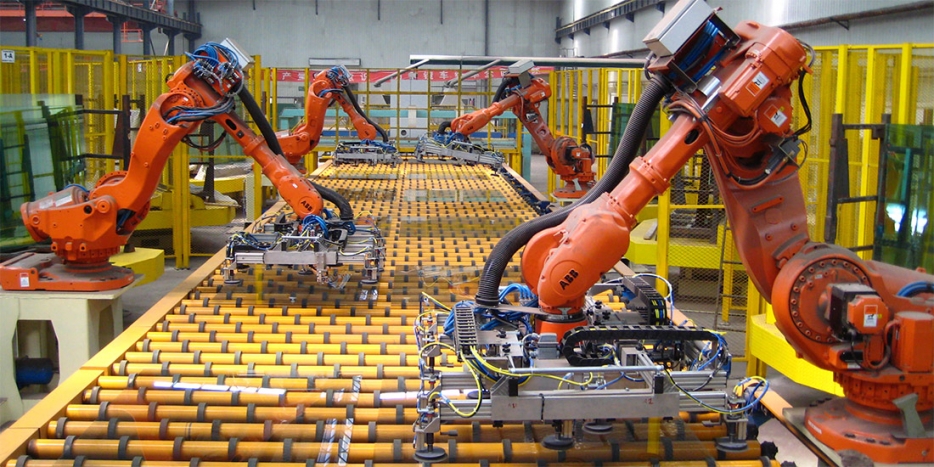
Mechanical arms such as those used for assembly of cars etc will use stepper motors to obtain exact position repeatably

Any automated machinery that requires exact positions to be returned to, will use stepper motor as they are very precise int he increments of rotation that they can do.

How to drive a stepper motor

Wave forms that drive a stepper motor

Turning coils on and off > Transistors are electric dimmer switches which can be used as on off switches for stepper motors


Stepper Motors with Arduino – Getting Started with Stepper Motors

Stepper Motor Code

Setup code for the stepper motor initialises which pins are the outputs from the arduino

void setup() {

// initialize digital pin LED_BUILTIN as an output.

pinMode(13, OUTPUT);

pinMode(12, OUTPUT);

pinMode(11, OUTPUT);

pinMode(10, OUTPUT);

}

void loop() {
//STEP 1
digitalWrite(10, HIGH);
digitalWrite(11, LOW);
digitalWrite(12, LOW);
digitalWrite(13, HIGH);
delay(2);                                      // delay

//STEP 2
digitalWrite(10, HIGH);
digitalWrite(11, HIGH);
digitalWrite(12, LOW);
digitalWrite(13, LOW);
delay(2);                                      // delay

//STEP 3
digitalWrite(10, LOW);
digitalWrite(11, HIGH);
digitalWrite(12, HIGH);
digitalWrite(13, LOW);
delay(2);                                      // delay

//STEP 4
digitalWrite(10, LOW);
digitalWrite(11, LOW);
digitalWrite(12, HIGH);
digitalWrite(13, HIGH);
delay(2);                                     // delay

The loop will run through all of the bracketed coded indefinitely

delay(2) is the amount of ms left between that line of code and the next, which determines how fast or slow the motor will turn. The smaller the number, the faster it spins.

Arduino – Week 1 – Software Notes

Pulse Width Modulation


Using ‘unsigned char’ to replace values

> ‘unsigned char’ allows you to control all of the same variables in a sketch by only changing one value

unsigned char DelayTime = 255;
unsigned char LEDoutput = 2;

// the setup function runs once when you press reset or power the board
void setup() {
 // initialize digital pin LED_BUILTIN as an output.
 pinMode(LED_BUILTIN, OUTPUT);
 pinMode(LEDoutput, OUTPUT);
}

// the loop function runs over and over again forever
void loop() {
 digitalWrite(LEDoutput, HIGH);
 digitalWrite(LED_BUILTIN, HIGH);
 delay(DelayTime);
 digitalWrite(LEDoutput, LOW);
 digitalWrite(LED_BUILTIN, LOW);
 delay(DelayTime);
 DelayTime = DelayTime - 10;
 }

Week 6 – Embedded programmer

The task this week was to program the board that we made using the CNC router. There are several levels to this week, some being ‘simple’ and some being advanced.

The main goal was to upload some sort of program to our Echo Hello World Plus board and ensure that it completed the function that the program was supposed to do.

PROGRAMMING ONLY WORKS ON MACS

Installing Arduino IDE with AtTiny boards

> Install Arduino IDE from here

> On the top menu > Arduino > Preferences > Additional Boards Manager URLs > Enter the below into the box

>       https://raw.githubusercontent.com/damellis/attiny/ide-1.6.x-boards-manager/package_damellis_attiny_index.json

This gives you access to the aTtiny boards and programmer

Loading the correct Settings

> Tools > Board > ATtiny24/44/84

> Tools > Processor > ATtiny44

> Tools > Clock > External 20MHz

> Tools > Programmer > USBtinyISP

Plug into a power supply with 5V  > GND 1st pin on ISP > +5v is the 3rd on the ISP

Burning the Bootloader

> Tools > Burn Bootloader

This originally didn’t work on Windows and therefore we switched to MAC

Programming

The first sketch tested was the Blink sketch from the > Examples > 01.Basics > Blink

The code required us to define which pin was the LED pin in order for it to work. This was worked out by using the pinout diagram. > Pin PB2 was connected to the LED and therefore the Arduino pin for this was no. 8.> Change all of the the LED_BUILTIN pins to 8

> Click Upload (Top menu)

gifs website

Fade

The Fade sketch is very similar to the Blink > Again change all of the LED_BUILTIN to 8

Button Sketch

> Again it is an example sketch

> Change the ledPin on the constants to 8

> Change the buttonPin on the constants to 7 (as worked out from the Pinout Diagram

This is where we encountered problems due to the sketch being uploading but the LED would either flicker or not come on at all.

After some further reading on the following websites, it might be due to not having an internal pullup resistor enabled.

https://fablabbrighton.github.io/digital-fabrication-module/guides/guide-board-programming

https://www.arduino.cc/reference/en/language/functions/digital-io/pinmode/

https://www.arduino.cc/en/Tutorial/DigitalPins

This will be tested later on……

Testing the Changes

Changes made are in bold

// constants won't change. They're used here to set pin numbers:
 const int buttonPin = 8;     // the number of the pushbutton pin
 const int ledPin =  7;      // the number of the LED pin

// variables will change:
 int buttonState = 0;         // variable for reading the pushbutton status

void setup() {
 // initialize the LED pin as an output:
 pinMode(ledPin, OUTPUT);
 // initialize the pushbutton pin as an input:
 pinMode(buttonPin, INPUT_PULLUP);
 }

void loop() {
 // read the state of the pushbutton value:
 buttonState = digitalRead(buttonPin);

// check if the pushbutton is pressed. If it is, the buttonState is HIGH:
 if (buttonState == HIGH) {
 // turn LED on:
 digitalWrite(ledPin, HIGH);
 } else {
 // turn LED off:
 digitalWrite(ledPin, LOW);
 }
 }
 

The only changes made to the existing button sketch was replacing INPUT with INPUT_PULLUP

Two sketches were recorded – one where the switch turned off the LED, and one which turned on the LED when it was pressed

Week 4 : Electronic Production

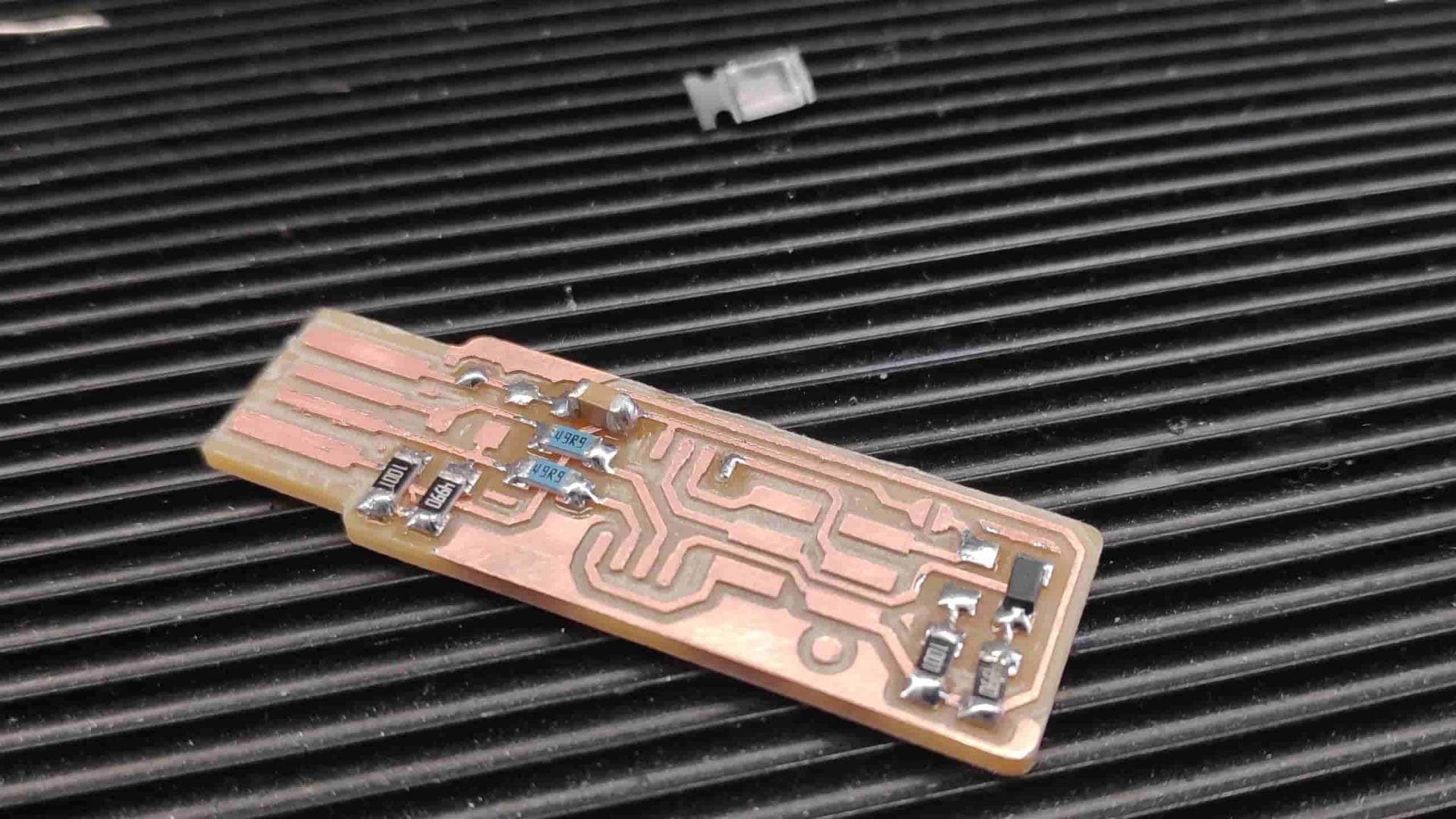
Surface mount components are very common and are what the majority of manufacturers will use due to the smaller size, compared to through components. It seems fairly easy to use them, although the mounting of these components, via soldering is vastly different to through hole components.

Through hole components have the obvious advantage of being self locating, so it is easy to manufacture. Surface mount components need to be held in place when soldering and so require skill to also locate them and make them straight.

Method

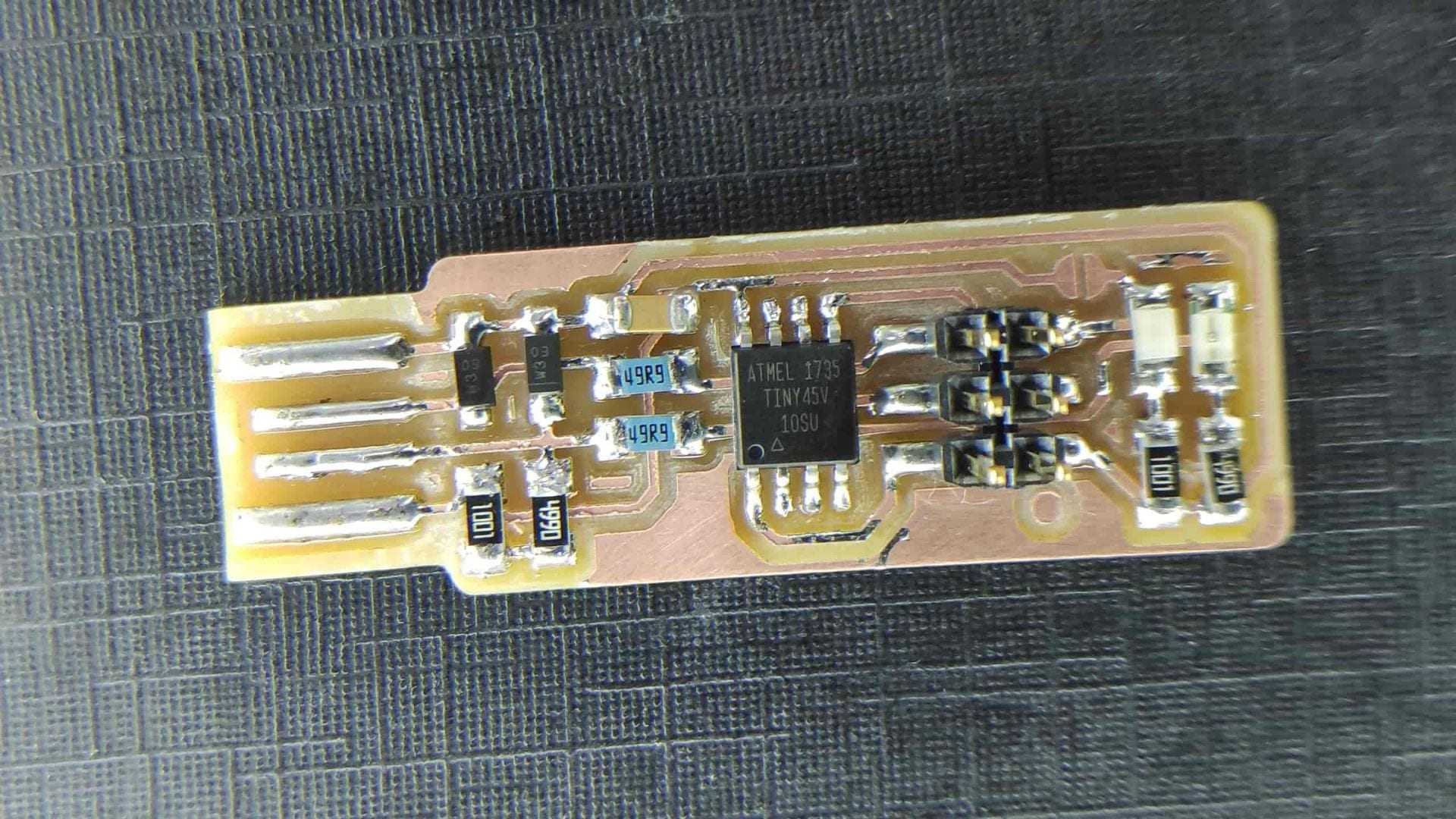
  1. Prepare the board for soldering by washing it in soapy water to remove any oxidation that may have occurred since milling.
  2. Gather all of the components and ensure you know what orientation they are supposed to be.

1x ATtiny45

2x 1kΩ resistors

2x 499Ω resistors

2x 49Ω resistors

2x 3.3v zener diodes

1x red LED

1x green LED

1x 100nF capacitor

1x 2×3 ISP header

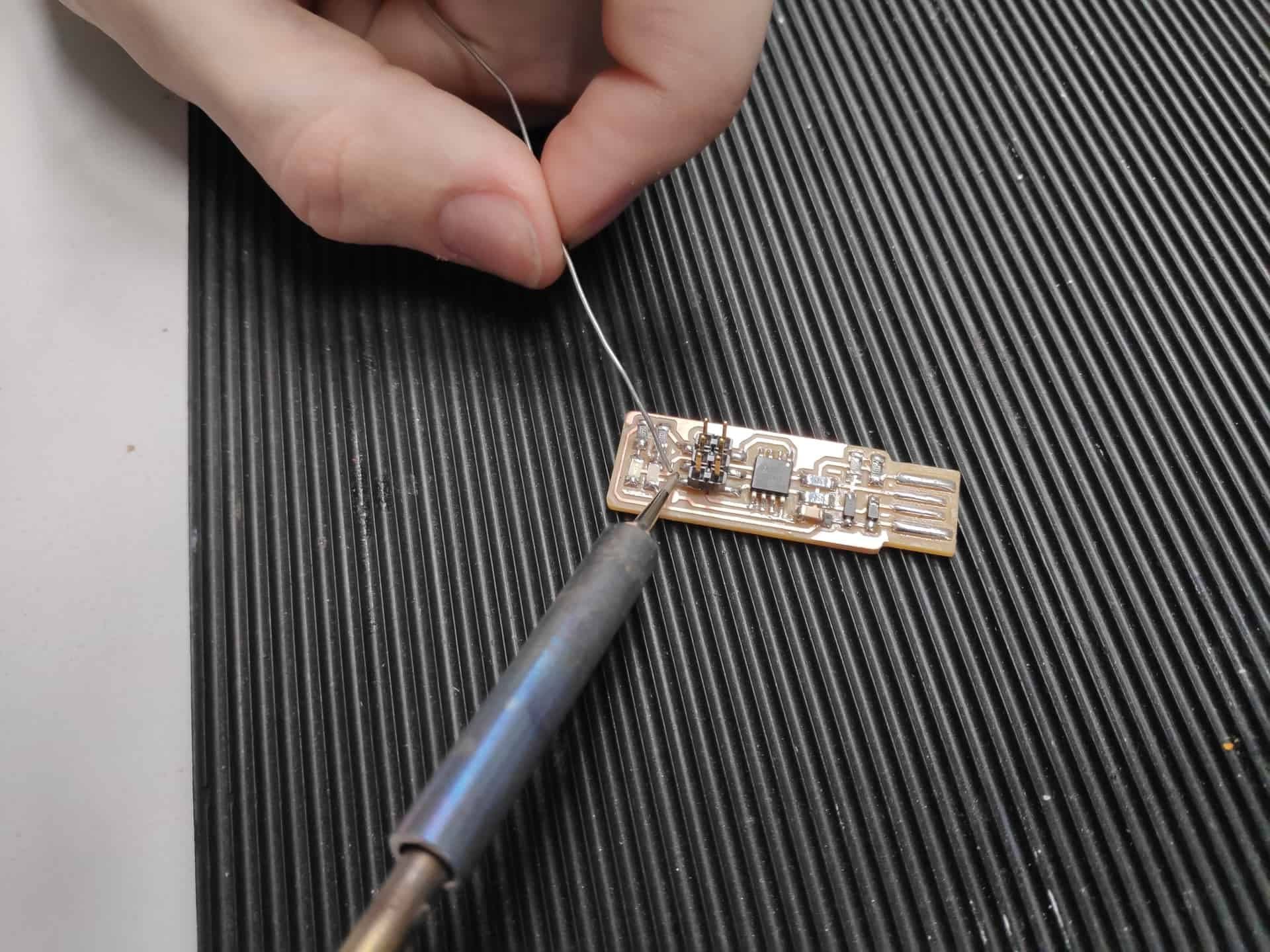
  1. Tin the soldering iron by adding a small amount of solder and removing it using the wet sponge.
  2. Tin one of the contacts for each of the resistors, capacitors and the diodes.
  3. Do the same for one of the 6/8 legs of the Tiny Chips and the ISP
  4. Place the components on top of the solder and use a pair of tweezers to push it towards the board, therefore keeping it still. This is the hardest step, as if you have tinned the pad with too much solder then you will find it difficult to hold the component next to the board.
  5. Heat up the solder which you tinned onto the board and you should have attached the component onto the board.
  6. Then solder the other end/legs of that component, going back to add more solder to the other leg/end if there isn’t enough.
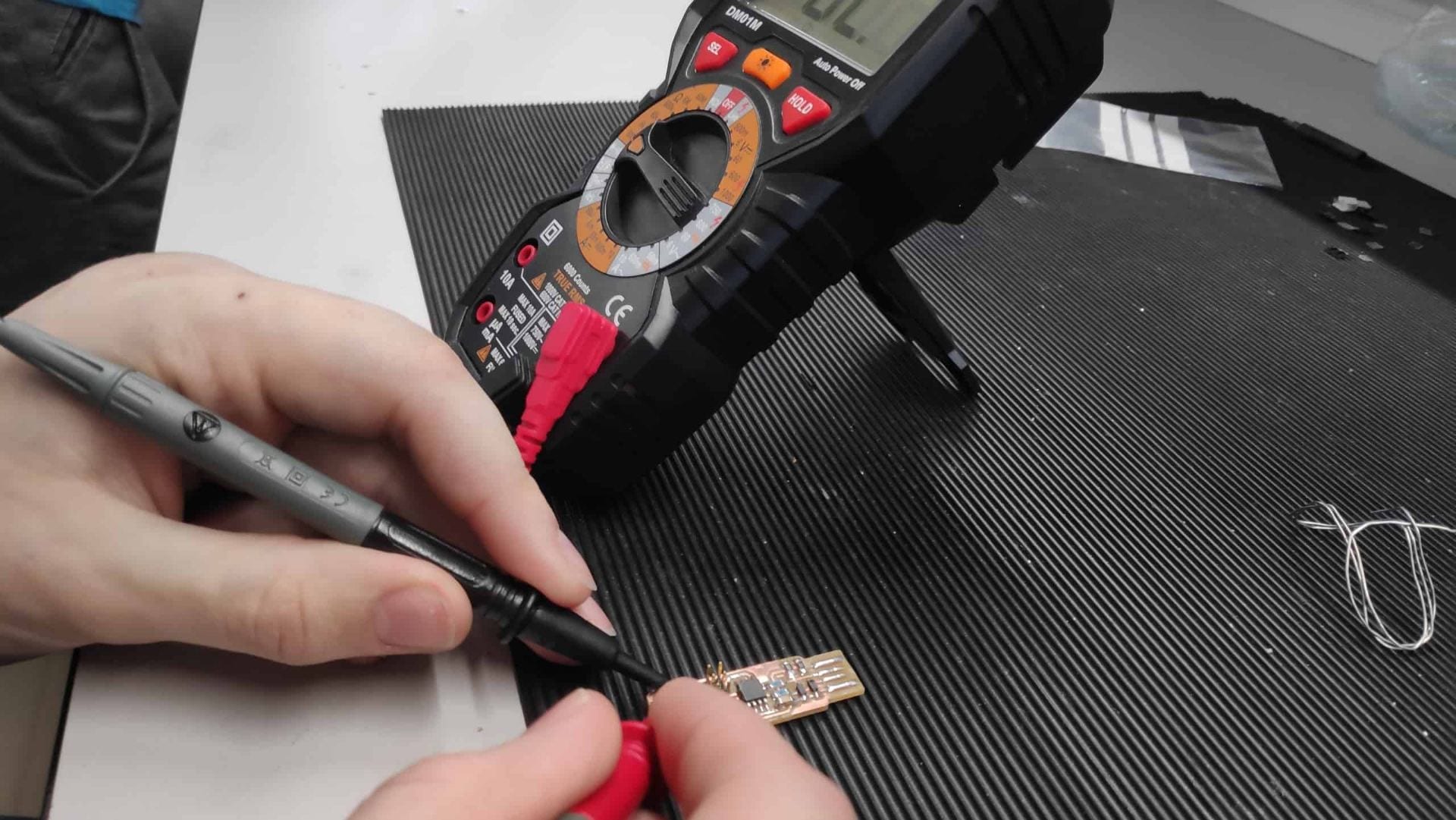
  7. To test the connection you should use a multi-meter on the most sensitive resistance setting. This will check continuity between the component. If the reading is 0 or very near to 0 e.g 0.003 then there is a short whereas if there is a reading of around the size of the resistors measurement then you cave it correctly installed.
  8. Check the overall circuit by applying 5v volts to the USB as in the diagram. S1 is shorted then the left LED should light up indicating that the circuit works.

Programming this chip requires it to be shorted and then the programming can begin.

*Update on Programming the programmer* 03/03/2019

Using these supporting blogs – Windows specific Installation

Installing the software was harder than following the links due to the lack of clear instruction on what parts are needed, especially for Git. The link for Atmel GNU Toolchain wasnt correct so I am unsure which I needed to install. I typed what the link was supposed to take me to into google and cap up with this website. Download all the files as a zip and then extract them in the desired folder.

I decided to create a different programs folder so I could better keep track of the software on my computer. I didn’t want to destroy anything.

Installations complete – all of the tools are located in F:UNI ProgrammingPrograms

Updating the path

Control Panel > Advanced System Settings > Advanced tab > Environment Variables

Under User Variables > Edit for Path > See below

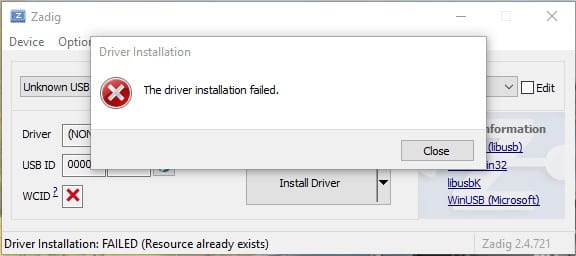
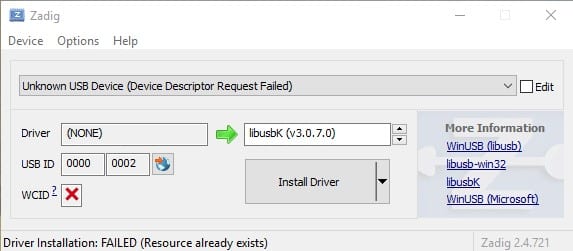
Next it to download Zadig and run this to install drivers for the USB > where I got stuck

Windows didn’t like the USB and so every attempt failed to install the drivers.


I checked here for shorts between VCC and ground and found nothing amiss so it is a possibility that my PC isn’t compatible and wont recognise the USB.

Checking software installations

> Type make -v in GitBash

> Type avr-gcc –version                                  FAILED

> Type avrdude -c usbtiny -p t45                 FAILED

UPDATE 2 > 04/03/2019

Going into the Fab Lab today helped so much after the failed attempts at home. The main different being using an iMac rather than a windows computer. Mike in the Fab Lab also says that Linux works very well, so maybe a possibility of having a separate partition on a hard drive to set up a Linux OS on my PC.

The steps are as follows for Mac with the software installed:

  1. Download the firmware for the programmer > http://fab.cba.mit.edu/classes/863.16/doc/projects/ftsmin/
  2. Open the Makefile in a text editor
  3. Customise the make file > Edit the line with MCU = attiny45
  4. Customise the clock speed > Edit the line with F_CPU = 16500000UL
  5. Edit the programmer used to program your board > PROGRAMMER ?= usbtiny
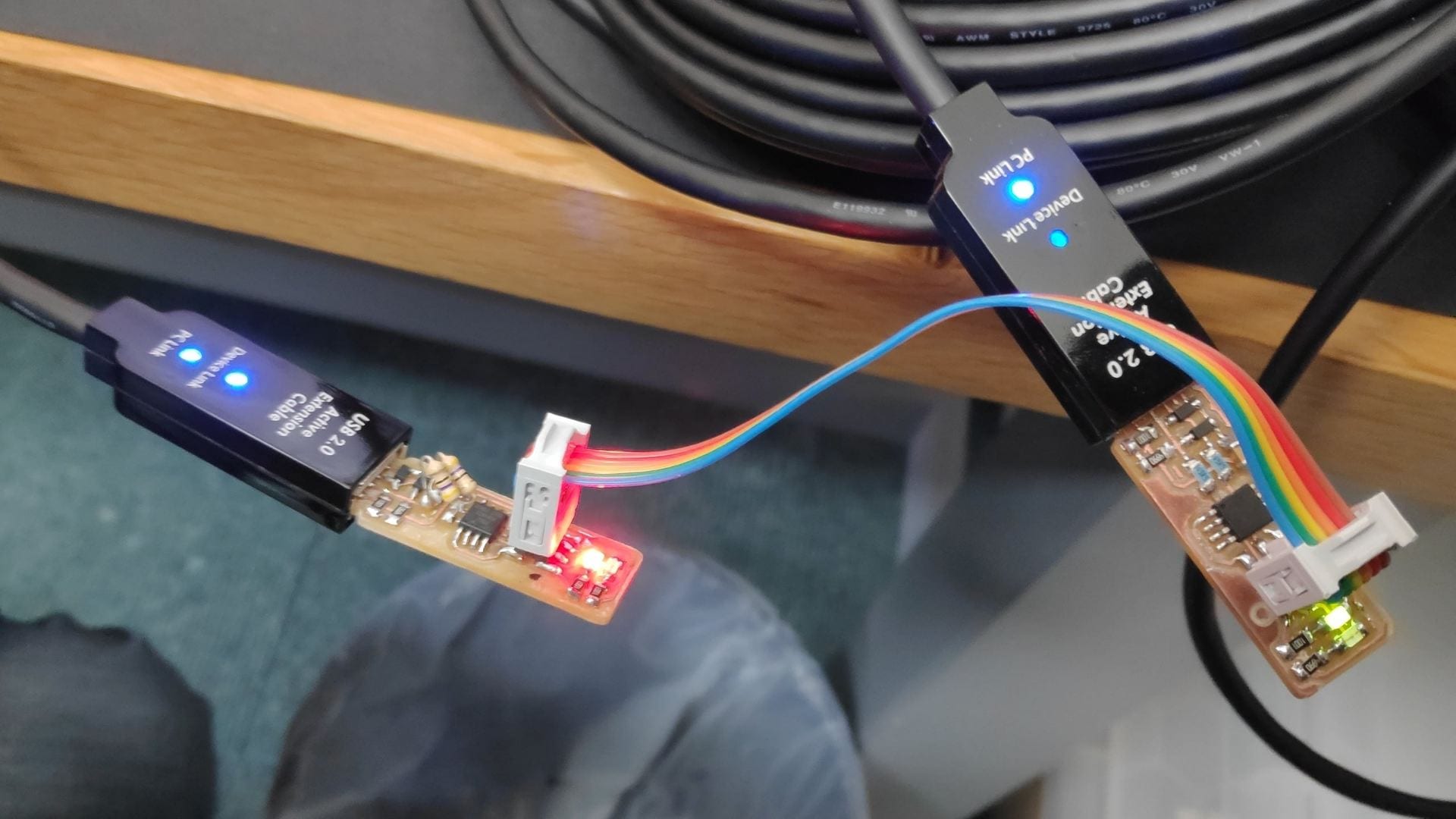
  6. Plug in your board using a USB extension to not mess up your computer USB ports as well as the programmer > connect their 2 ISP headers with a ribbon cable in the correct orientation
  7. Open the Terminal > type pwd to check path Enter
  8. Type cd (space) (and drag the downloaded folder in) Enter
  9. Type pwd to check > should be the path of your folder Enter
  10. Type make flash > should come up with loading bars if working Enter
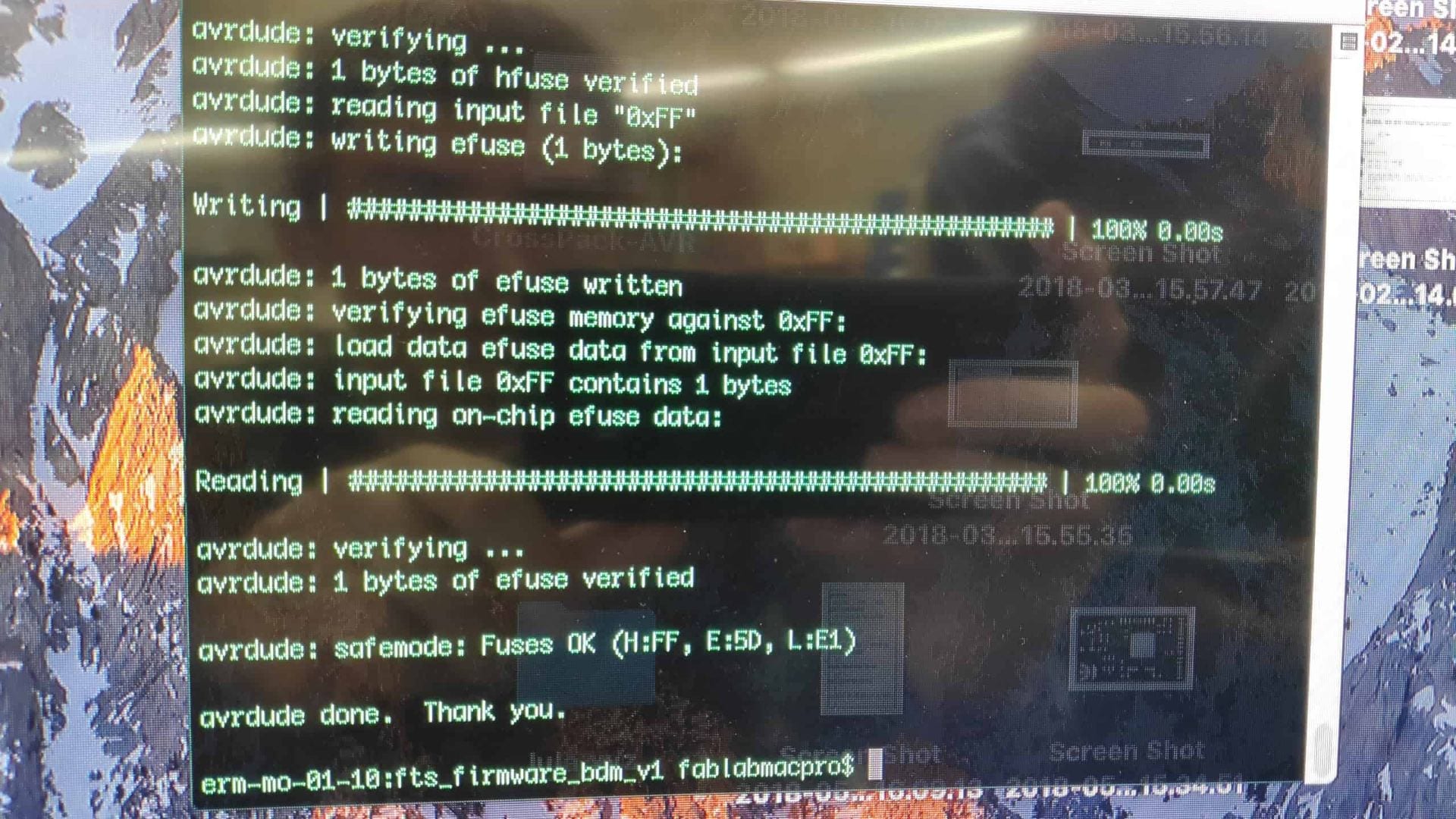
  11. Type make fuses > should come up with loading bars if working Enter
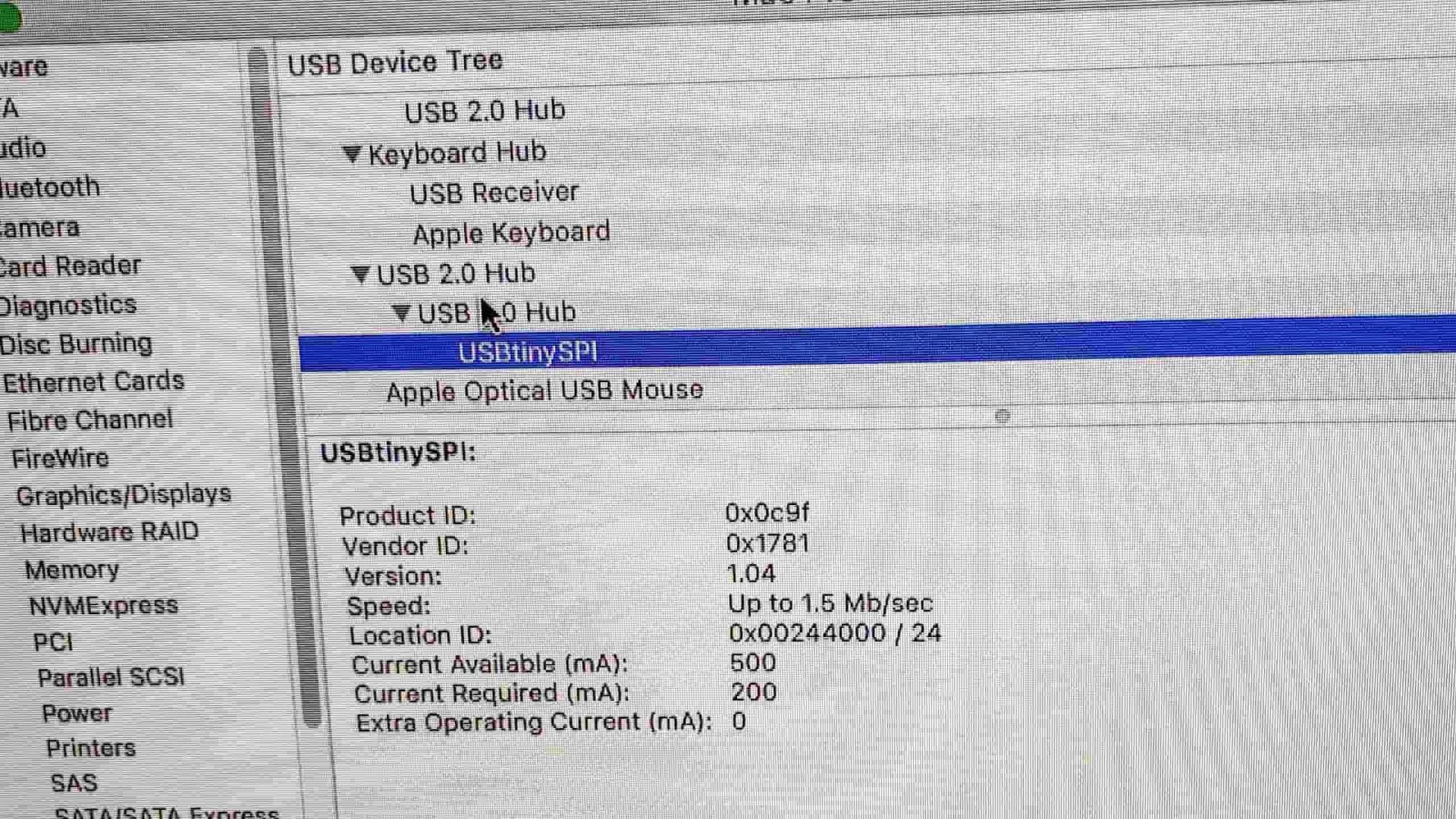
  12. Unplug both > re-insert your board > check mac recognises device in the system information > should show usbtiny
  13. Reattach programmer and ribbon cable
  14. Type make rstdisbl  > blows reset fuse > should come up with loading bars if working Enter
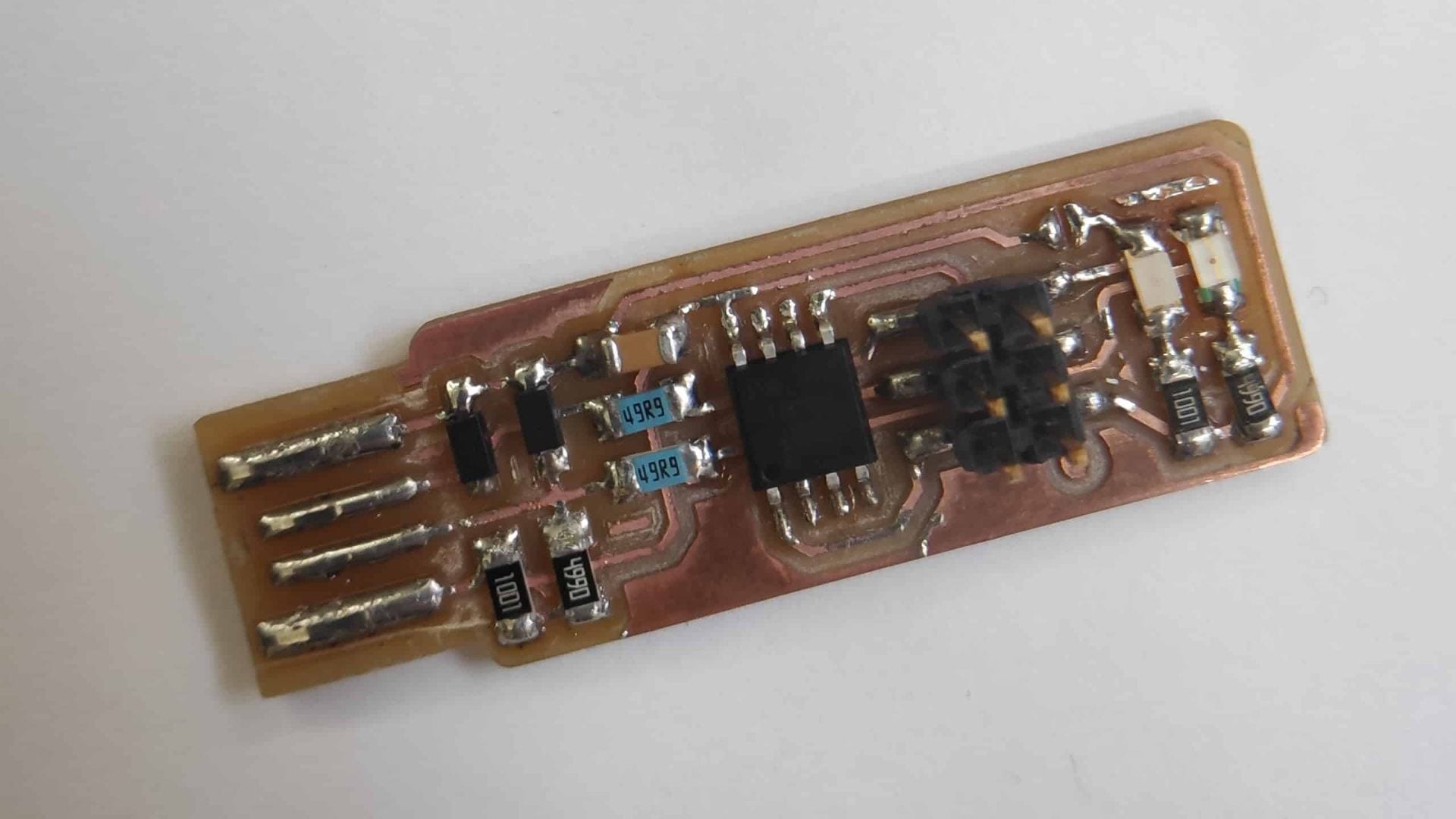
  15. Remove solder bridge if successful and you should now have a programmer

The programmer was then successfully tested using Andrew’s code to a board containing an LED and switch.

Multiple programs were tested and all were successful.

Board that my programmer could program